Point
Place a point in a Sketch.
Written By Angelo Bartolome
Last updated About 2 months ago
Point places a single dot in a Sketch. Points are what other shapes are built from, and they are useful on their own as places to constrain to or to put holes.
When to use it
Use Point to mark where a Hole goes, or to set a spot other shapes can snap and constrain to. In Getting Started, two points mark the holes of the bracket. A sketch made only of points has no closed outline, so it can't be extruded.
Place a point
- While you edit a sketch, tap Point in the sidebar. If you don't see the drawing Tools, tap the pencil icon at the top of the sidebar.
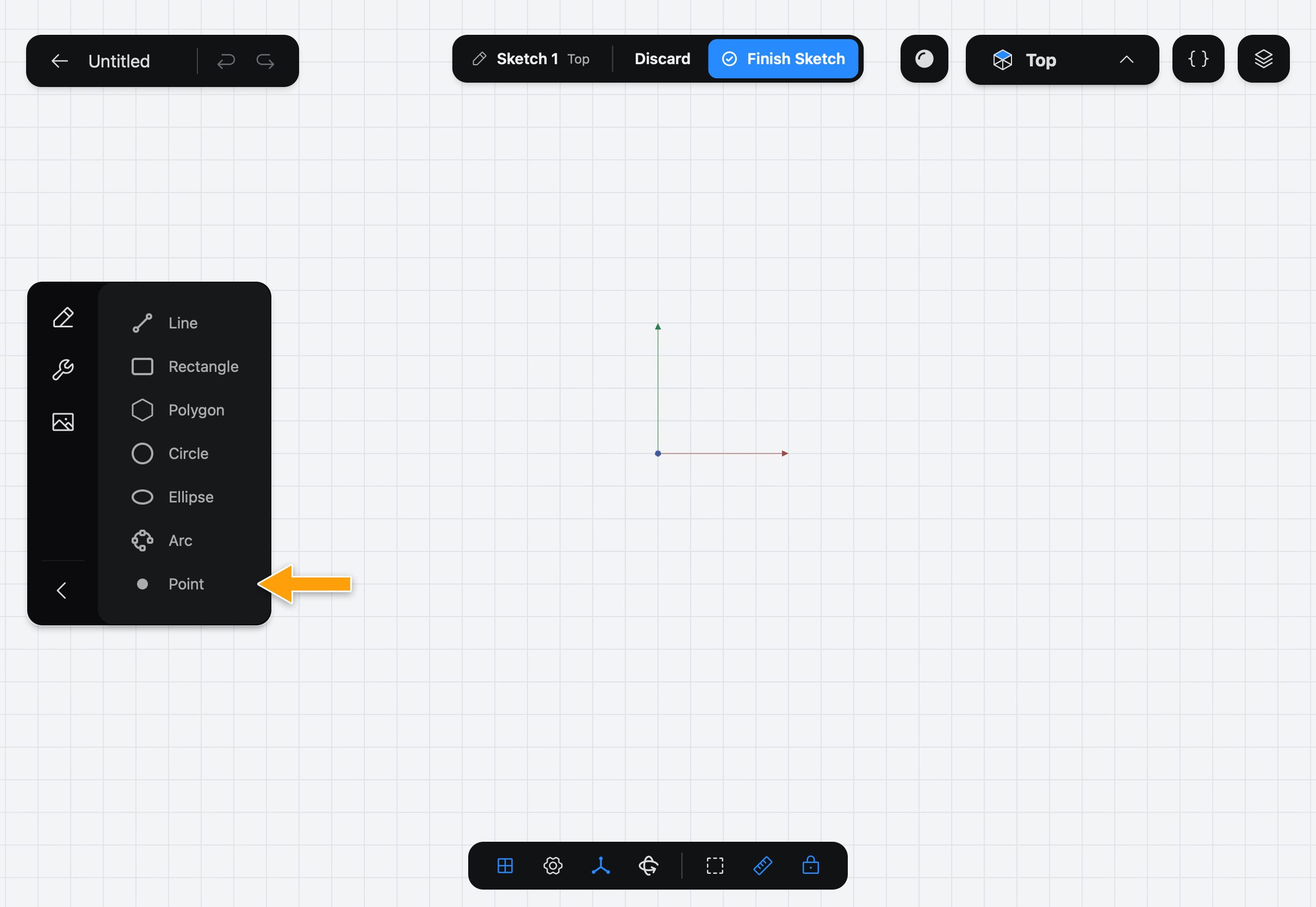
- With the Pencil, tap where the point should go.
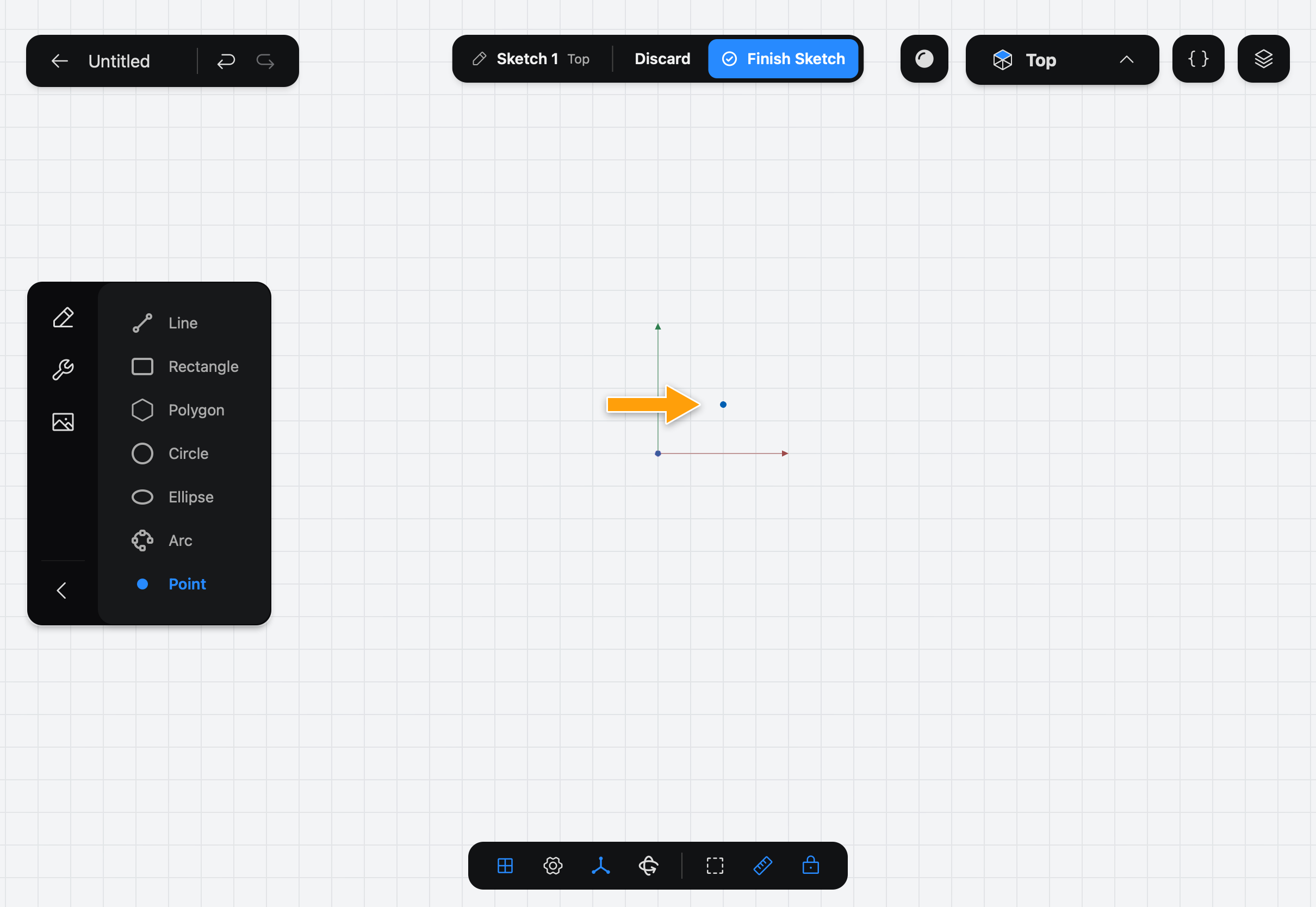
A point snaps to the origin, to other points and to the ends and edges of other shapes, so press on one of them to place it exactly.
Options
Point has no options. The keyboard shortcut is P.
Common problems
- The point landed in the wrong spot: drag it to where you want it.
- The point joined to a line instead of standing alone: it snapped to the line. Place it away from other shapes, or turn off Auto constraints in the settings menu in the bar at the bottom of the screen.
- Nothing was placed: use the Pencil, not a finger.
On Mac: click with the mouse instead of tapping with the Pencil, and press P to pick the Tool. Pressing the key again puts it away.
Was this helpful?
Still need help? Share an idea