Features and the History
How a Document is built from a list of Features, and how to edit or delete one.
Written By Angelo Bartolome
Last updated About 2 months ago
A Feature is one modeling step: a Sketch, an Extrude, a Hole, a Fillet. Each Feature remembers its settings, such as a length or a radius, and can only use what the Features before it made.
The History is the ordered list of a Document's Features. Part3D builds your solids by replaying it from the top. Change an early Feature and everything after it is rebuilt on top of the change. That is what "parametric" means: your model is a recipe, not a lump of clay.
You don't have to read this page to use a Tool. But it's worth knowing how to change your mind after the fact.
See the History
Tap the layers icon in the top-right corner, then the History tab (the timer icon). The Features are listed in the order you added them.
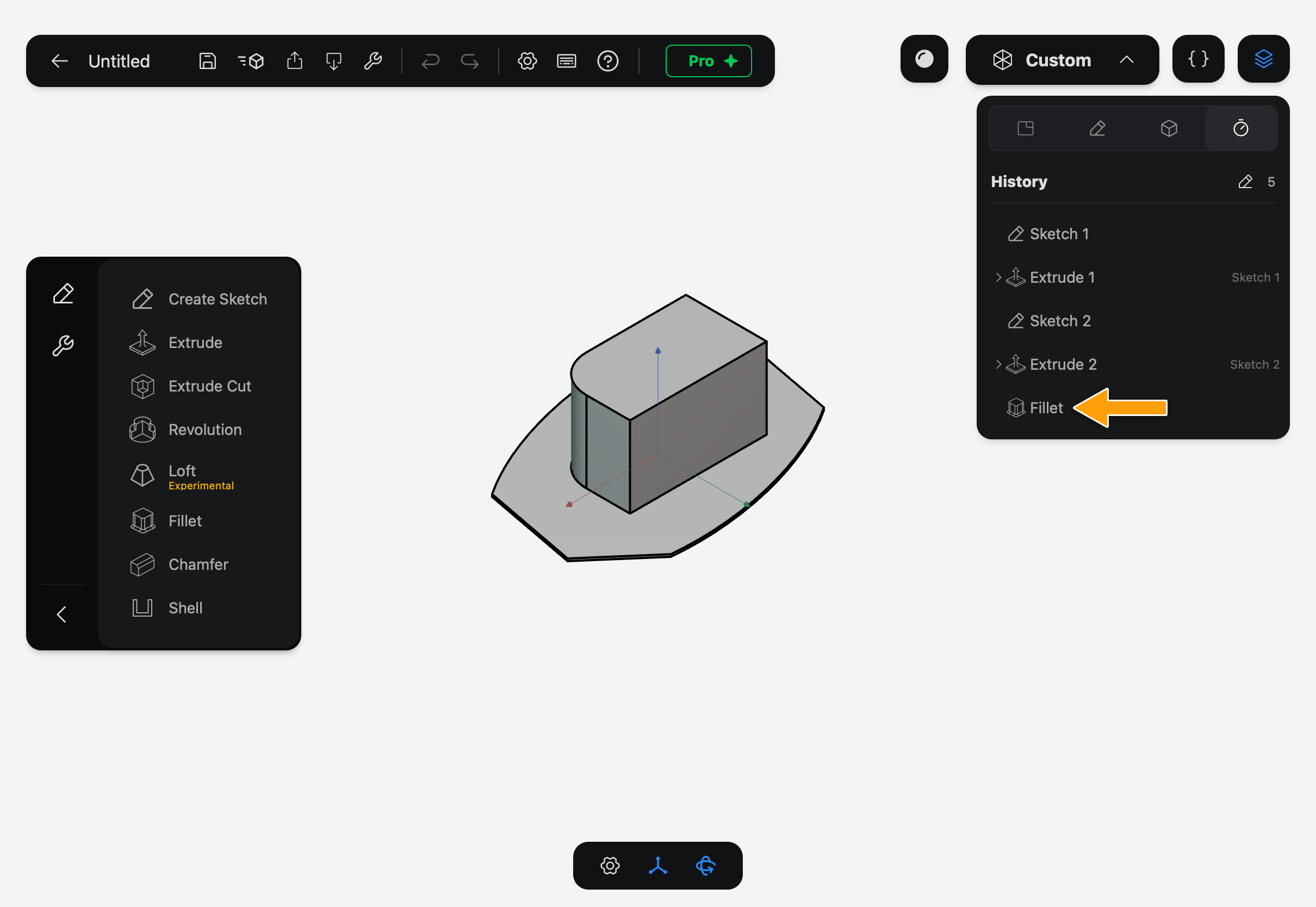
Edit a Feature
- In the History, tap the Feature.
- In the bar that appears, tap Edit.
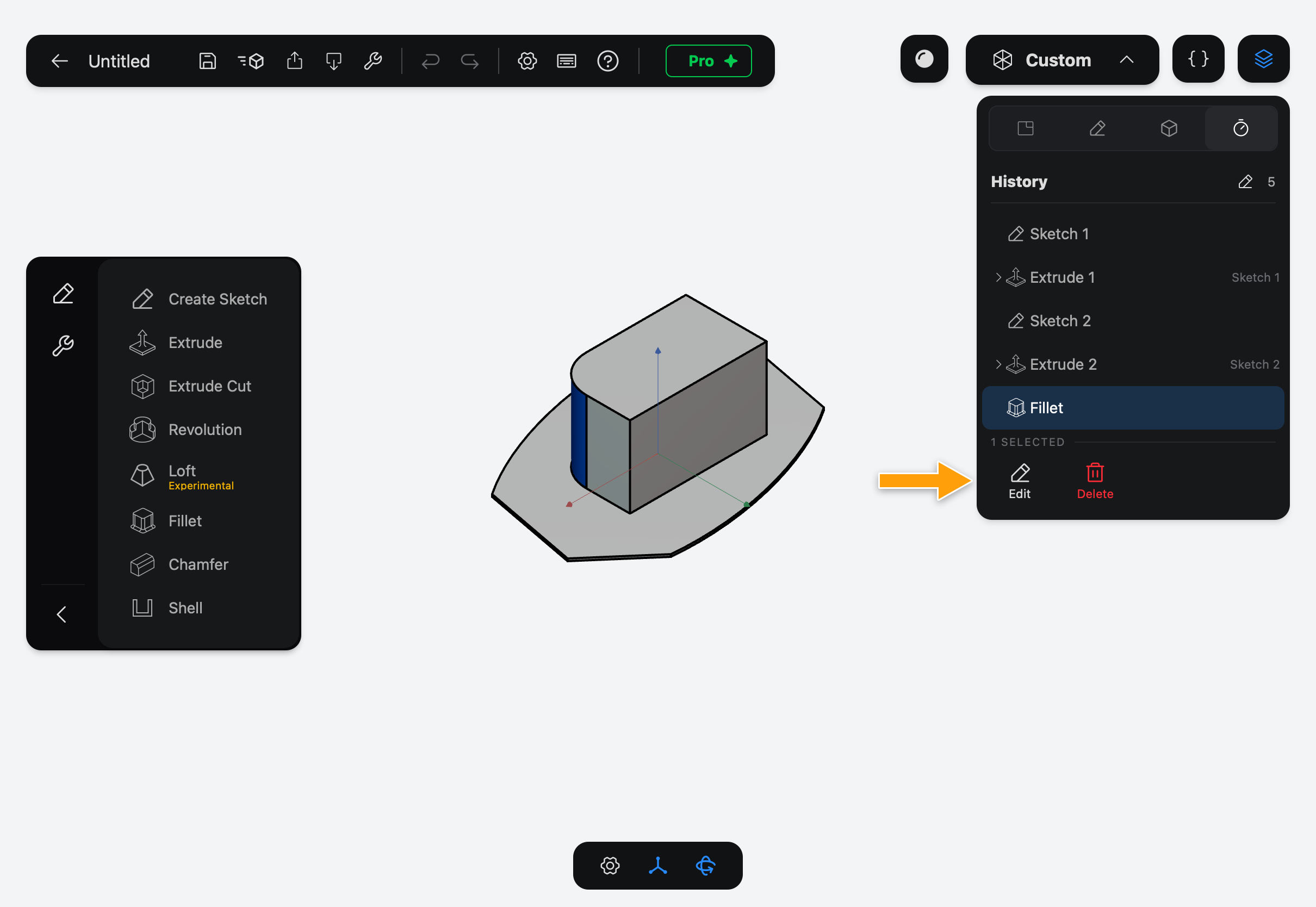
- The Feature's panel opens with its settings, and the view shows the Document as it stood at that step. Change what you need, then tap Apply.
Every Feature after it is rebuilt. A later Feature that depended on something you changed may fail; open it and fix its settings.
Delete a Feature
- In the History, tap the Feature, then tap Delete.
- The Delete Feature dialog asks you to confirm. Tap Delete, or Cancel to keep the Feature.
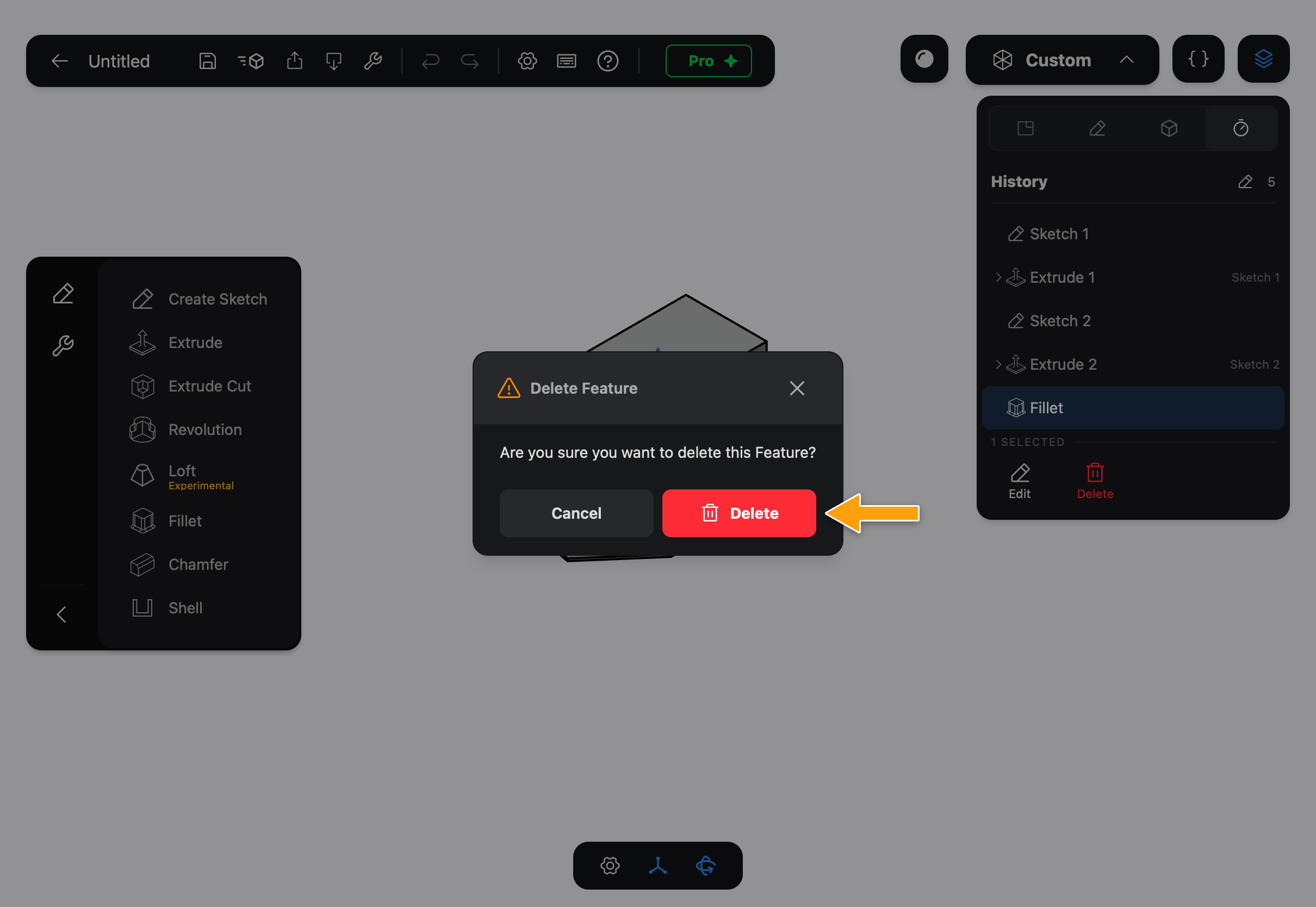
Warning: Deleting a Feature deletes only that one. The Features after it stay, and any that used it fail until you fix them. If you delete by mistake, tap Undo in the toolbar.
Tip: To remove a whole solid at once instead, use Delete in the Solids tab. That adds a Delete Solid Feature to the History, so you can still undo it.
What's next
Was this helpful?
Still need help? Share an idea