Trim
Remove the part of a line, arc or circle between where other shapes cross it.
Written By Angelo Bartolome
Last updated About 2 months ago
Pro: Trim is part of Part3D Pro.
Trim removes a piece of a line, arc or circle in a Sketch: the part between the points where other shapes cross it, or between a crossing and the end.
When to use it
Use Trim to clean up where shapes overlap: the stubs left when two lines cross, or the part of a circle inside another. To remove a whole shape, select it and use Delete instead.
Trim a piece
- While you edit a sketch, tap the wrench icon at the top of the sidebar to show the sketch Tools, then tap Trim.
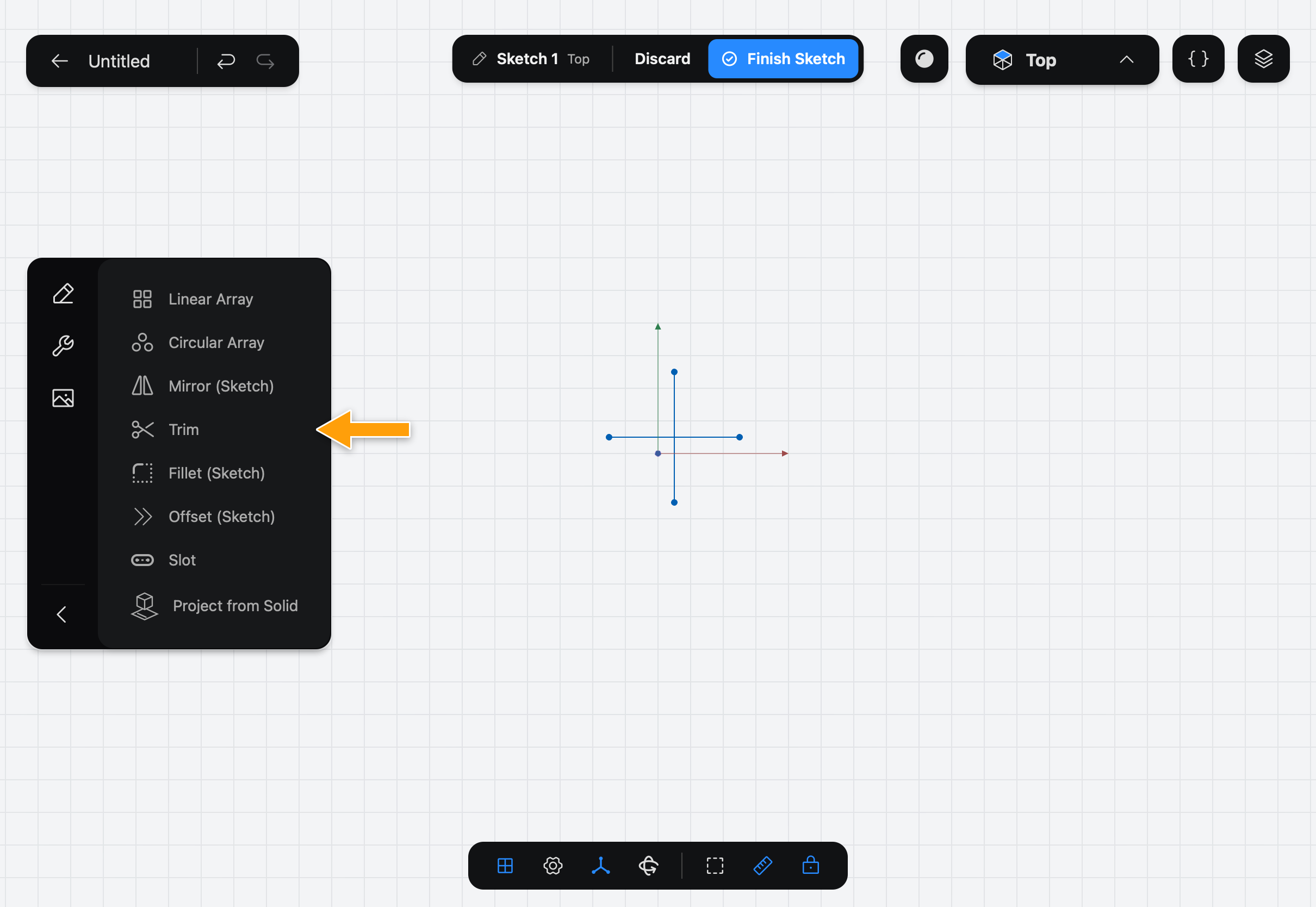
- The step bar shows Trim, Tap segments to remove. Hold the pointer over a shape, or touch it with the Pencil. The piece that would be removed is drawn dashed in red.
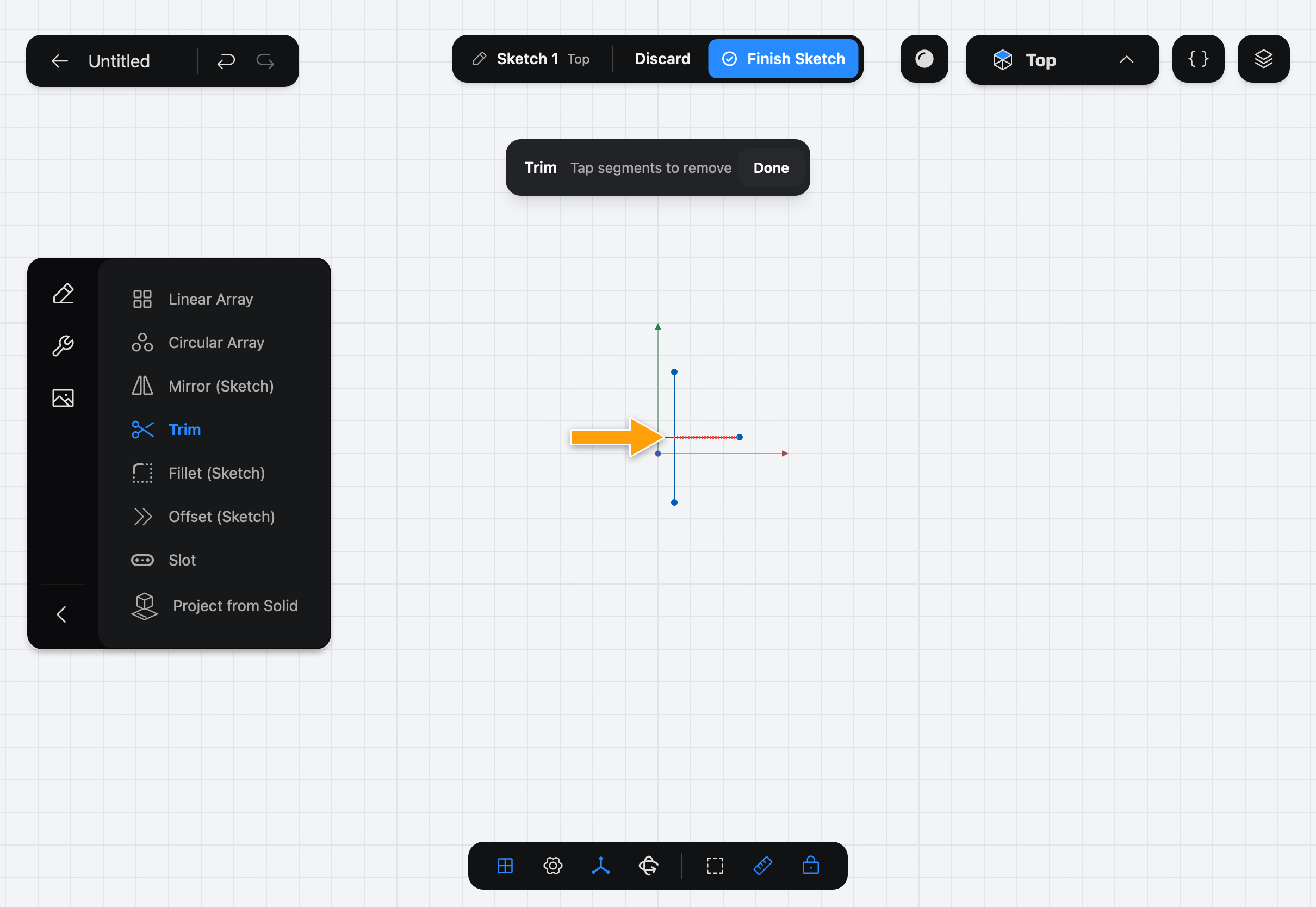
- Tap the piece, or lift the Pencil. It is removed at once.
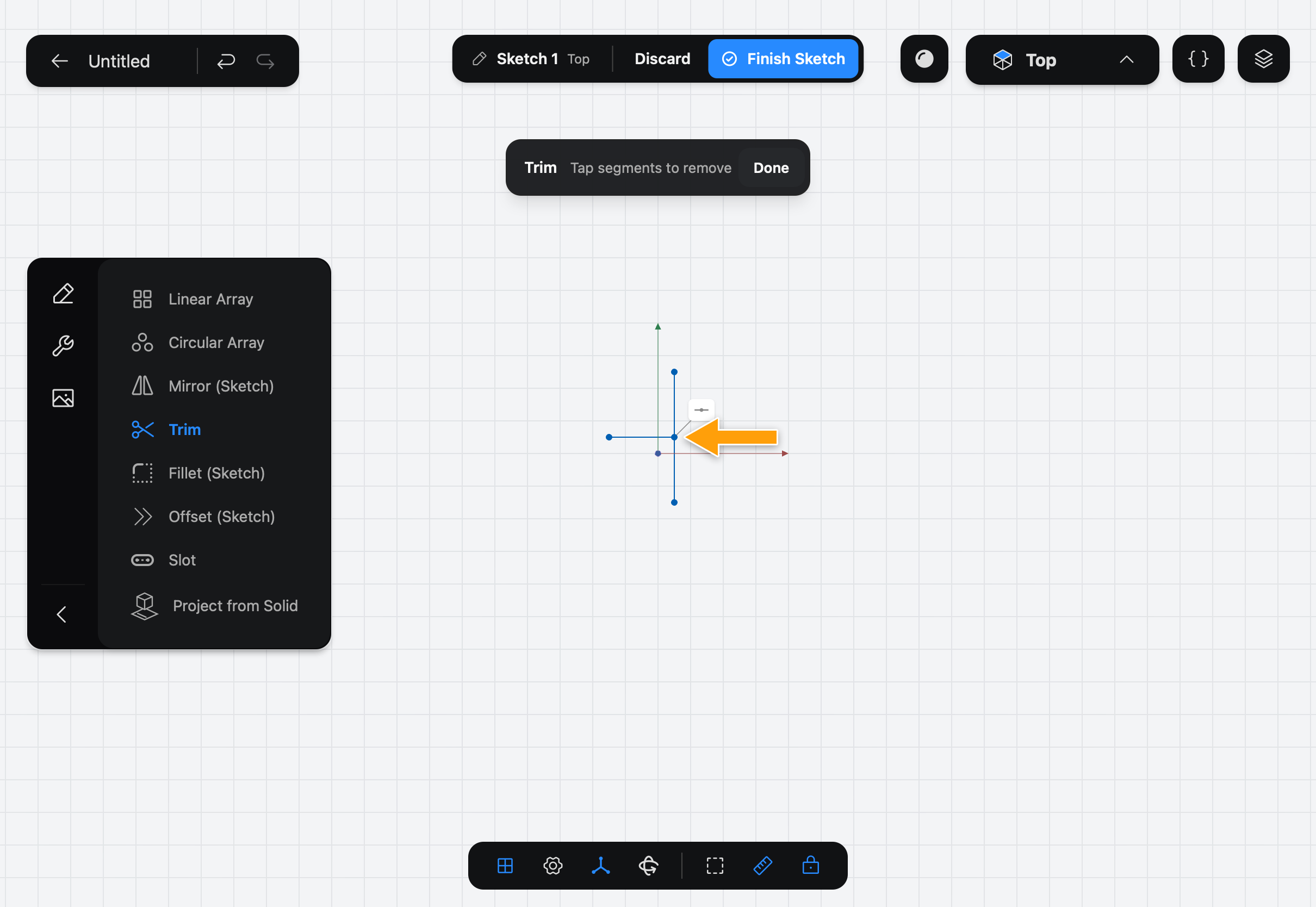
- Trim more pieces the same way. Tap Done when you finish.
Options
Trim has no options. Each tap applies at once, so there is no Apply and no ✕: Done (or Esc) closes the Tool. To take a trim back, use Undo.
With the Pencil, the red preview shows when you touch down and follows the Pencil as you slide it. Lifting trims the piece you are over. Slide off every shape before lifting and nothing is trimmed.
Common problems
- The wrong piece is removed: tap Undo and trim again, this time checking the red preview first.
- I tapped a point and the point stayed: points are never trimmed. Tapping where a shape ends trims the nearest line, arc or circle instead.
- A message says trimming ellipses isn't supported: Trim does not work on ellipses yet. Delete the ellipse, or redraw it.
- A message says the mirror or pattern relation was removed: trimming a copy made by Mirror (Sketch) or an array takes it out of that pattern.
On Mac: click wherever this page says tap. Hold the pointer over a shape to preview a trim, click to trim.
Was this helpful?
Still need help? Share an idea