Linear Array
Copy shapes along a line, at a spacing and count you choose.
Written By Angelo Bartolome
Last updated About 1 month ago
Pro: Linear Array is part of Part3D Pro.
Linear Array makes copies of shapes in a Sketch, spaced evenly along a line. The copies stay tied to the original: change it, and every copy follows.
When to use it
Use Linear Array for a row of equal holes, teeth, slots or ribs. For copies around a point, use Circular Array. For a mirror image, use Mirror (Sketch).
Make a Linear Array
While you edit a sketch, tap the wrench icon at the top of the sidebar to show the sketch Tools, then tap Linear Array.
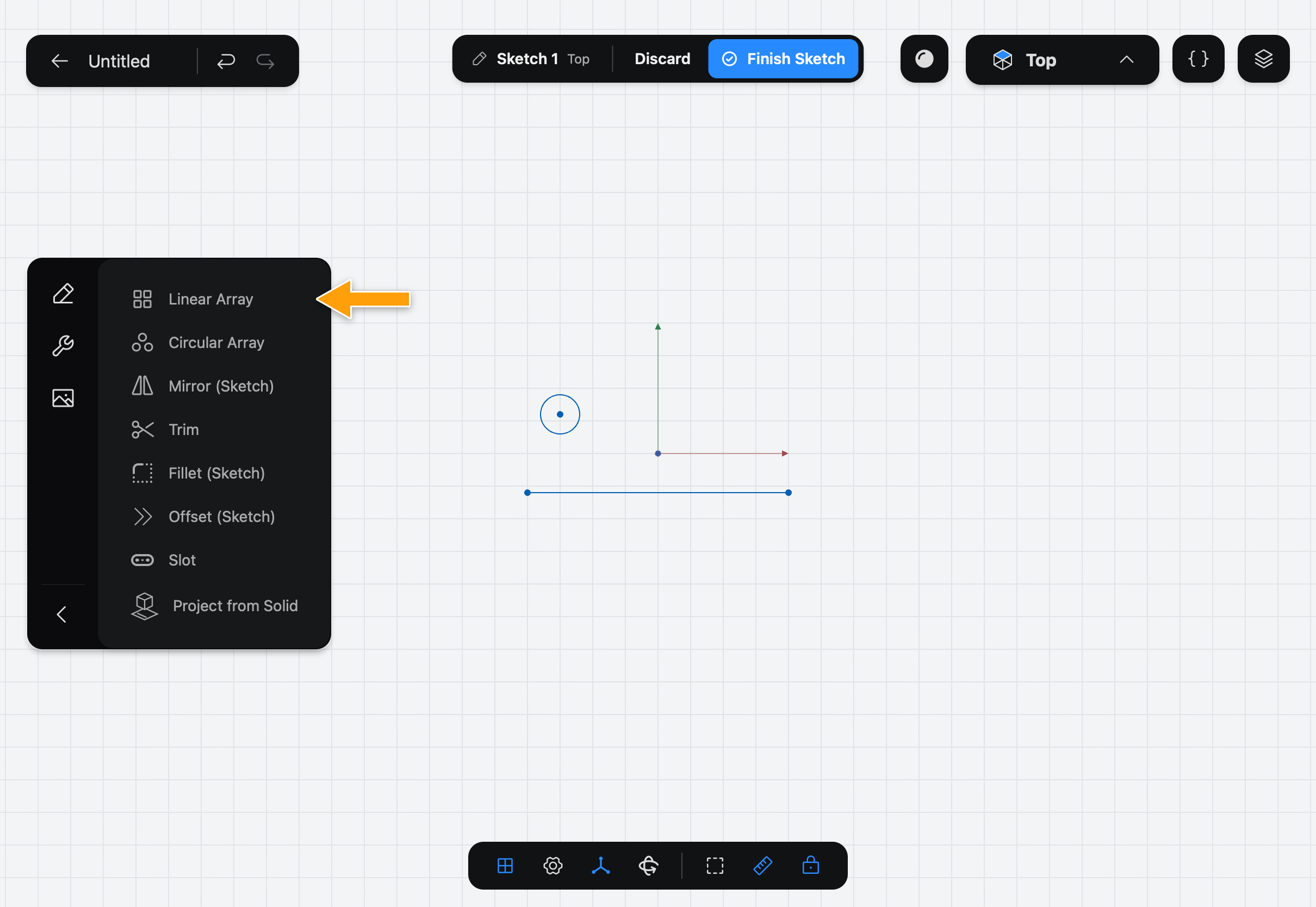
The step bar appears at the top of the canvas: Linear Array, Select entities. Tap each shape to copy. A count shows how many you have picked, and tapping a picked shape again drops it. Then tap Next.
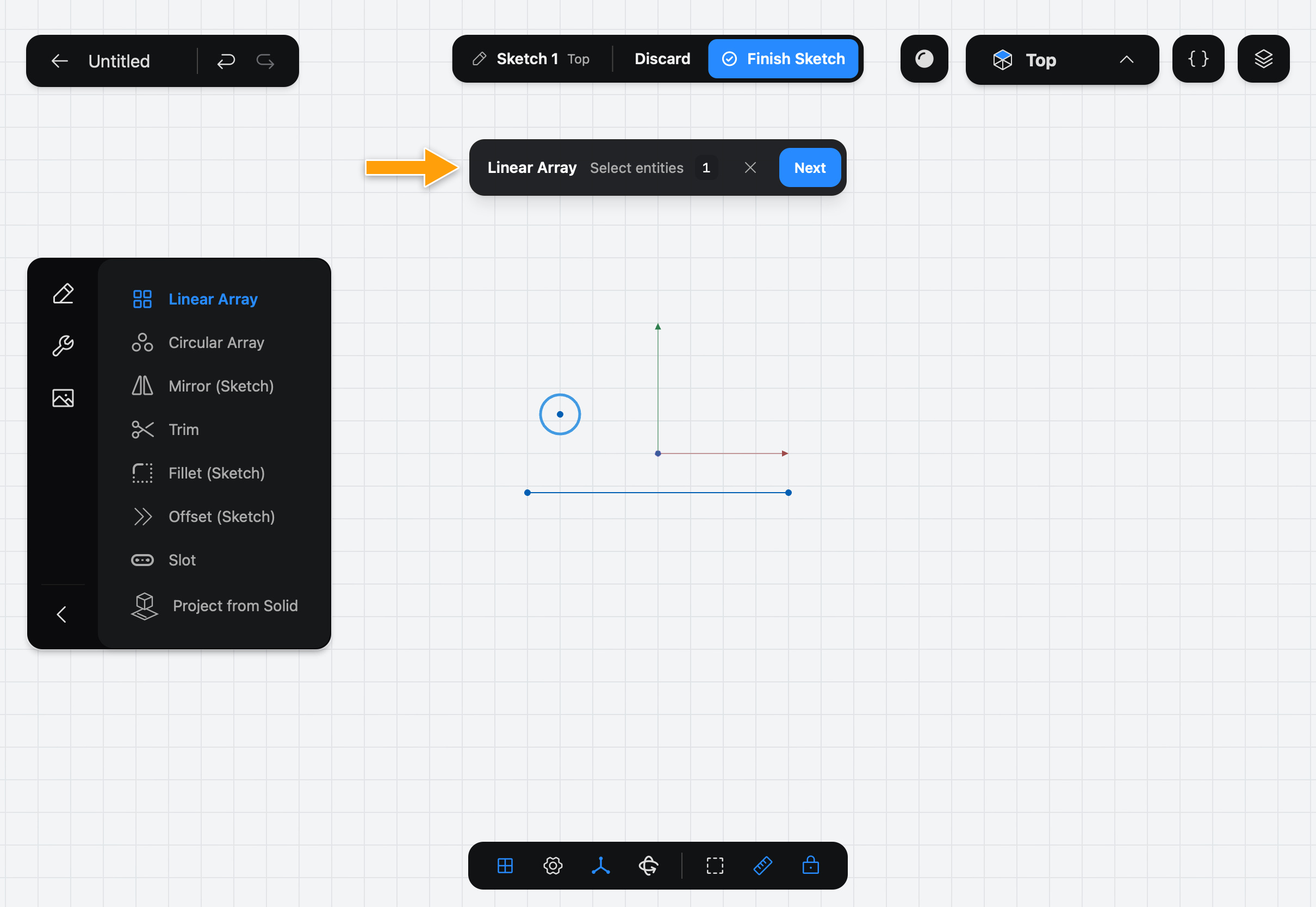
If you pick the shapes before you open the Tool, it skips this step and goes straight to the next.
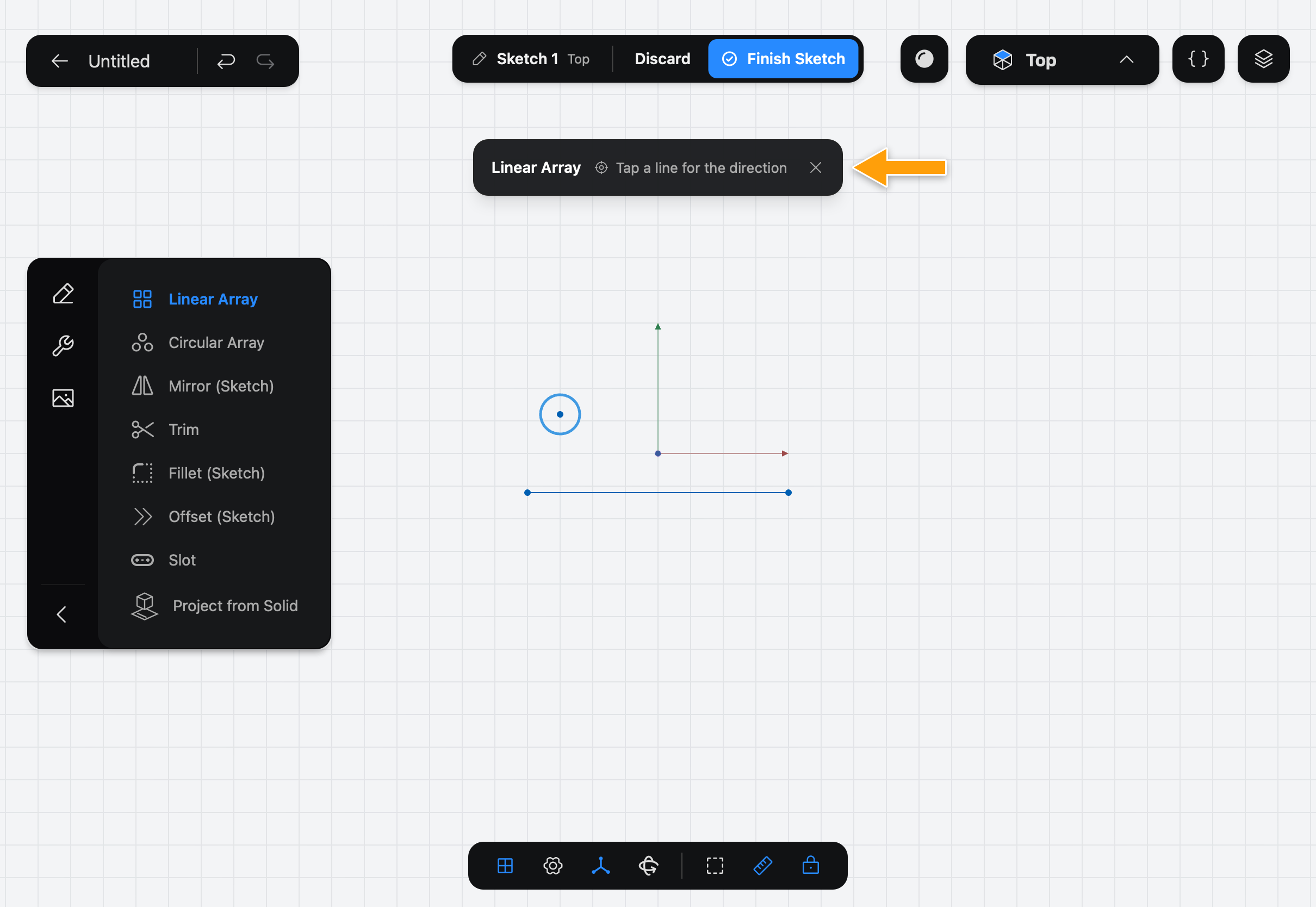
The bar asks you to Tap a line for the direction. Tap the line the copies should run along. Only its direction matters: the copies start at the original, not on the line.
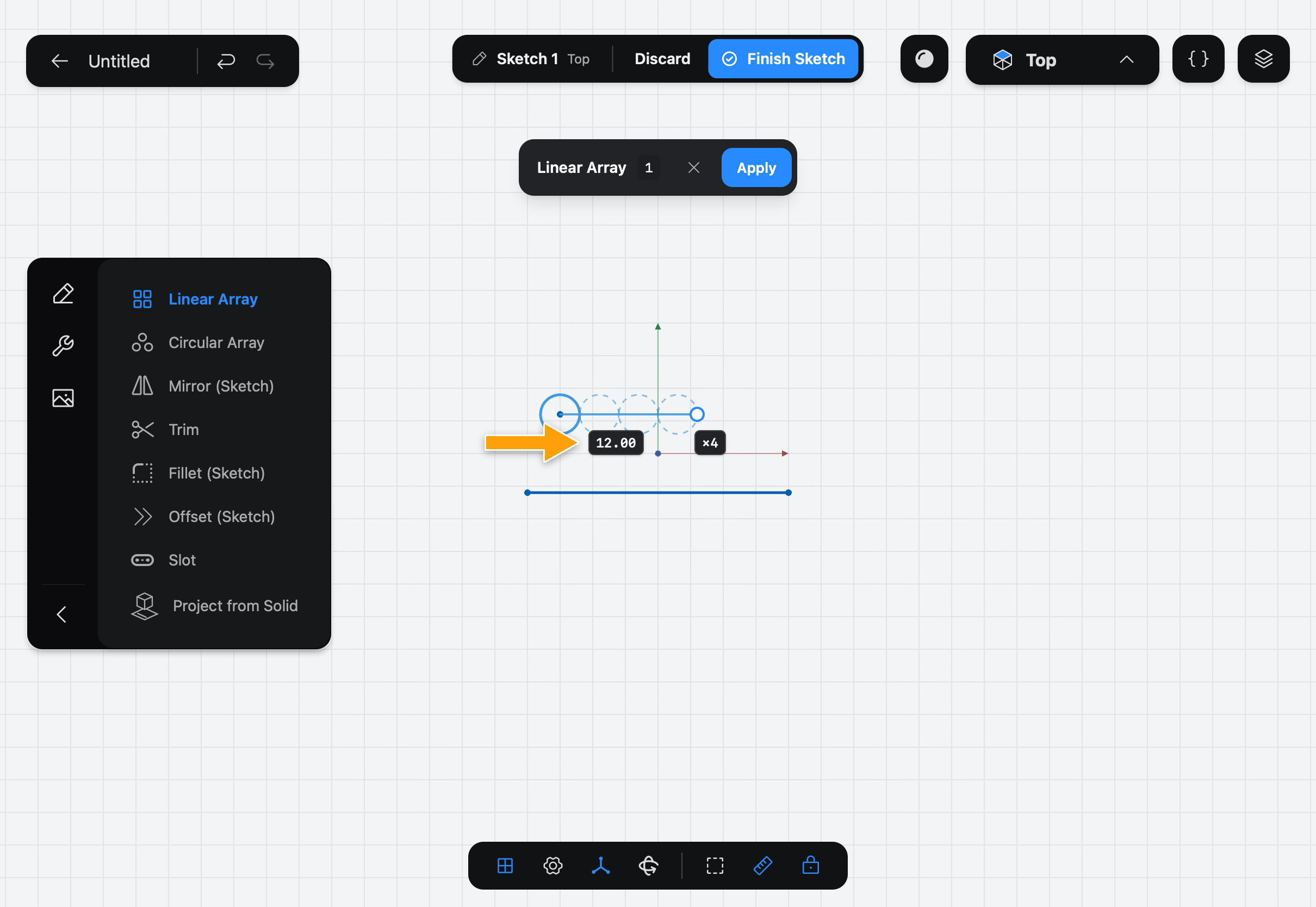
The copies appear as a preview, with two tags: the spacing between them and, after the ×, how many there are in all, the original included. Tap a tag and enter a new value.
Tap Apply. The copies are added to the Sketch.
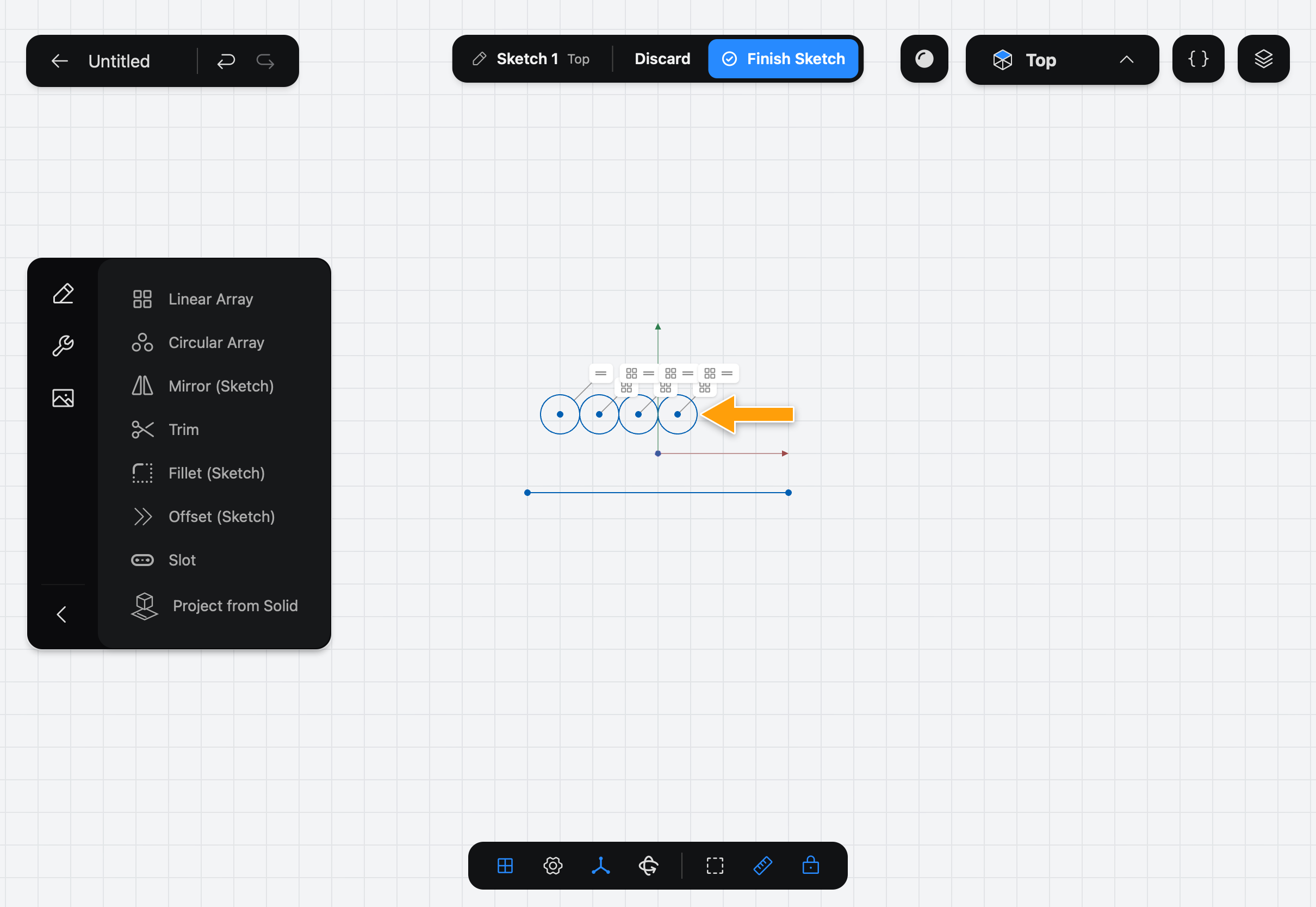
Options
- Spacing is the distance between one copy and the next. It starts at the width of the shapes you picked, so they sit side by side.
- Count is how many shapes there are, the original included. It starts at 4.
- The round handle past the last copy changes the spacing and the way the copies run: drag it along the line to space them further apart, or back past the original to run them the other way. Tap it to pick a different direction line.
- The ✕ in the bar cancels the Tool without changing the Sketch.
The copies are linked to the original by Constraints. To take a copy out of the pattern and move it freely, select it, tap ⋯ and pick Detach from Linear Array.
Change a Linear Array
Select the original or any copy, tap ⋯ and pick Edit Linear Array…. You can also double-tap a copy.
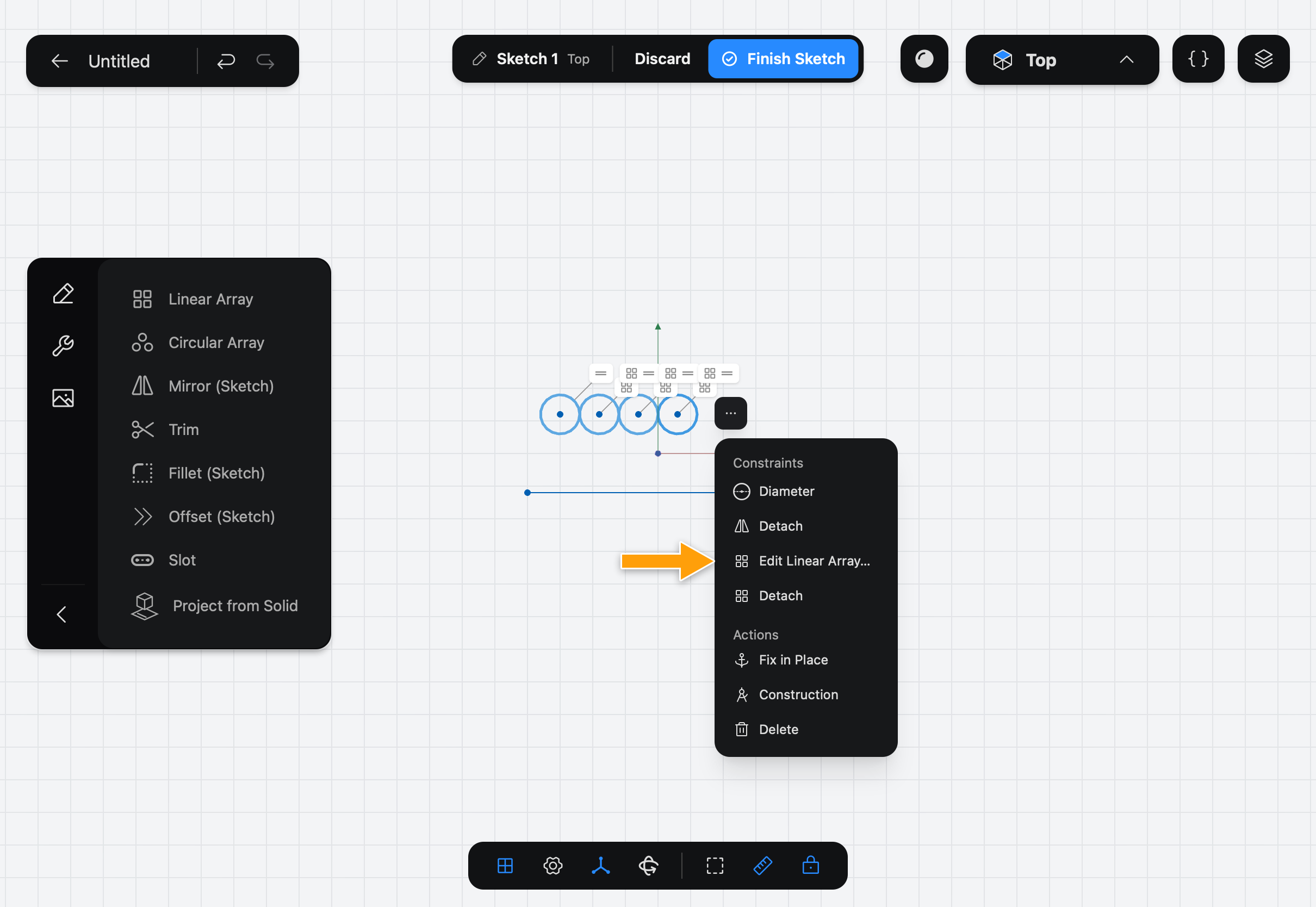
The spacing and count tags appear on the array. Tap one and enter a new value. The array changes as soon as you set it: there is no Apply. The handle at the end of the line runs the copies the other way.
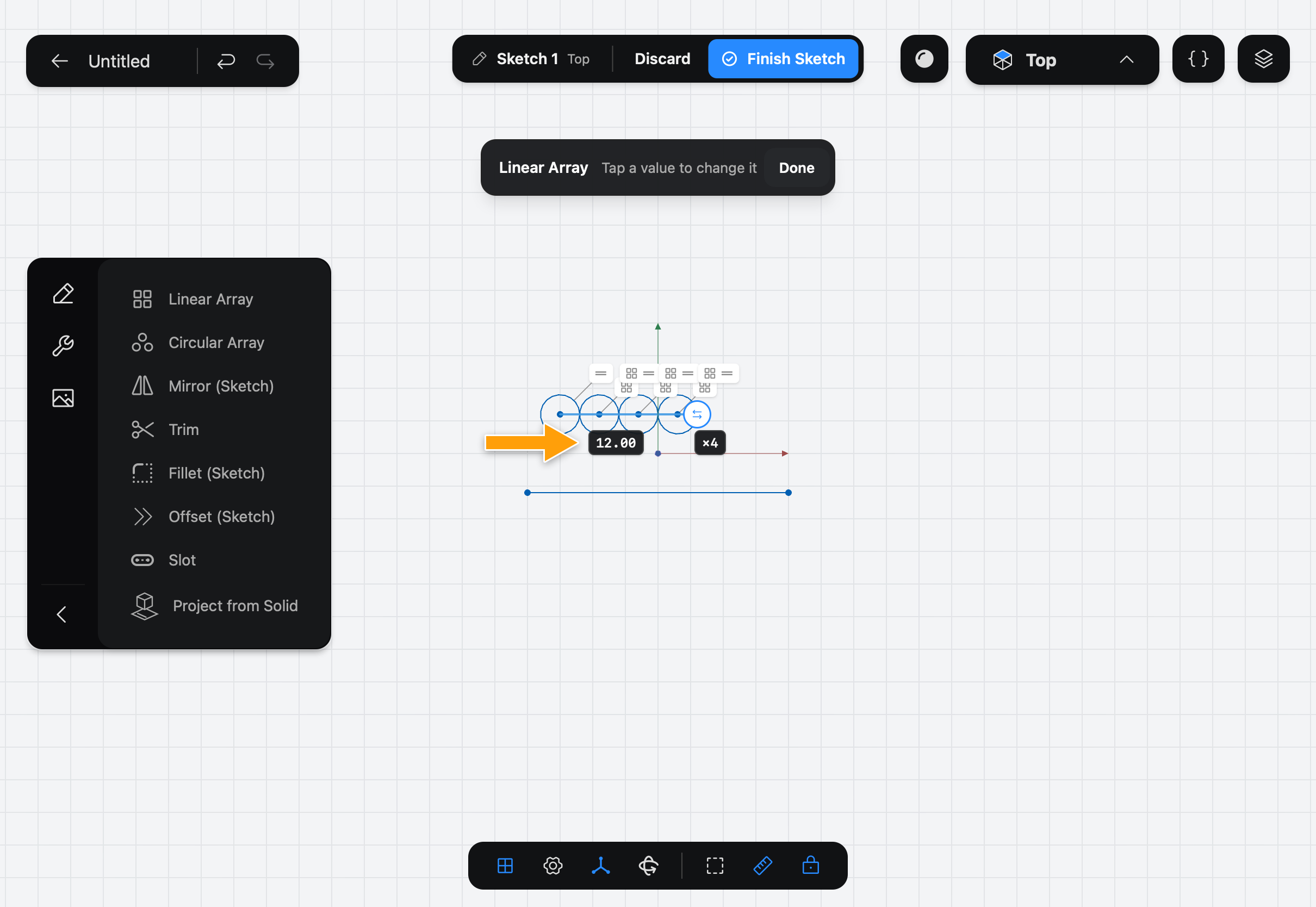
Tap Done when you're finished. Each change is its own step, so Undo takes back the last one.
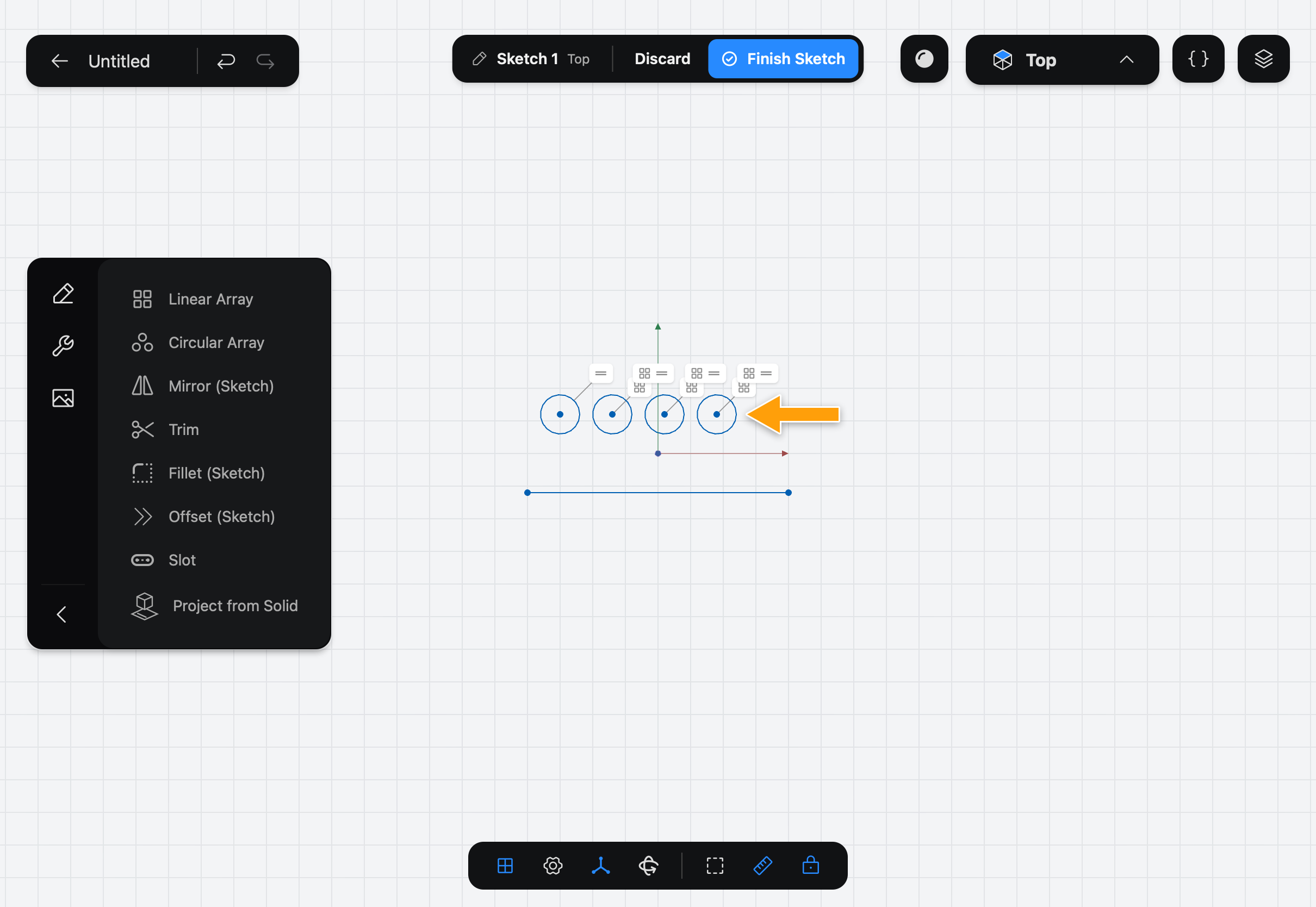
- A lower count deletes the copies past it, with any Constraints on them. Raise it again to get new copies.
- A copy you deleted, or detached, stays out when you change the count.
- The spacing can come from a Parameter: in the value editor, pick one with the braces, as for a dimension.
- If you delete the original, the copies stay as ordinary shapes and the array can't be edited any more.
Common problems
- Next stays greyed out: pick at least one shape first.
- The copies run the wrong way: drag the handle back past the original, or tap it and pick another line.
- The copies overlap: raise the Spacing.
- I picked the wrong direction line: tap the handle, then tap the right line. Tap Keep Current to leave it as it was.
On Mac: click wherever this page says tap. To change a tag, click it and type the value; there is no numpad.
Was this helpful?
Still need help? Share an idea