Offset (Sketch)
Copy a chain of lines and arcs at a set distance from the original.
Written By Angelo Bartolome
Last updated About 2 months ago
Offset (Sketch) draws a copy of a chain of lines and arcs in a Sketch at a set distance from the original, on one side of it. The copy stays at that distance if you change the original.
Offsetting a face of a solid? See Offset Face.
When to use it
Use Offset (Sketch) to make a wall's inner and outer outline, a clearance gap around a part, or a border inside a shape. Around a closed shape, the offset can sit inside or outside it.
Offset a chain
- While you edit a sketch, tap the wrench icon at the top of the sidebar to show the sketch Tools, then tap Offset (Sketch).
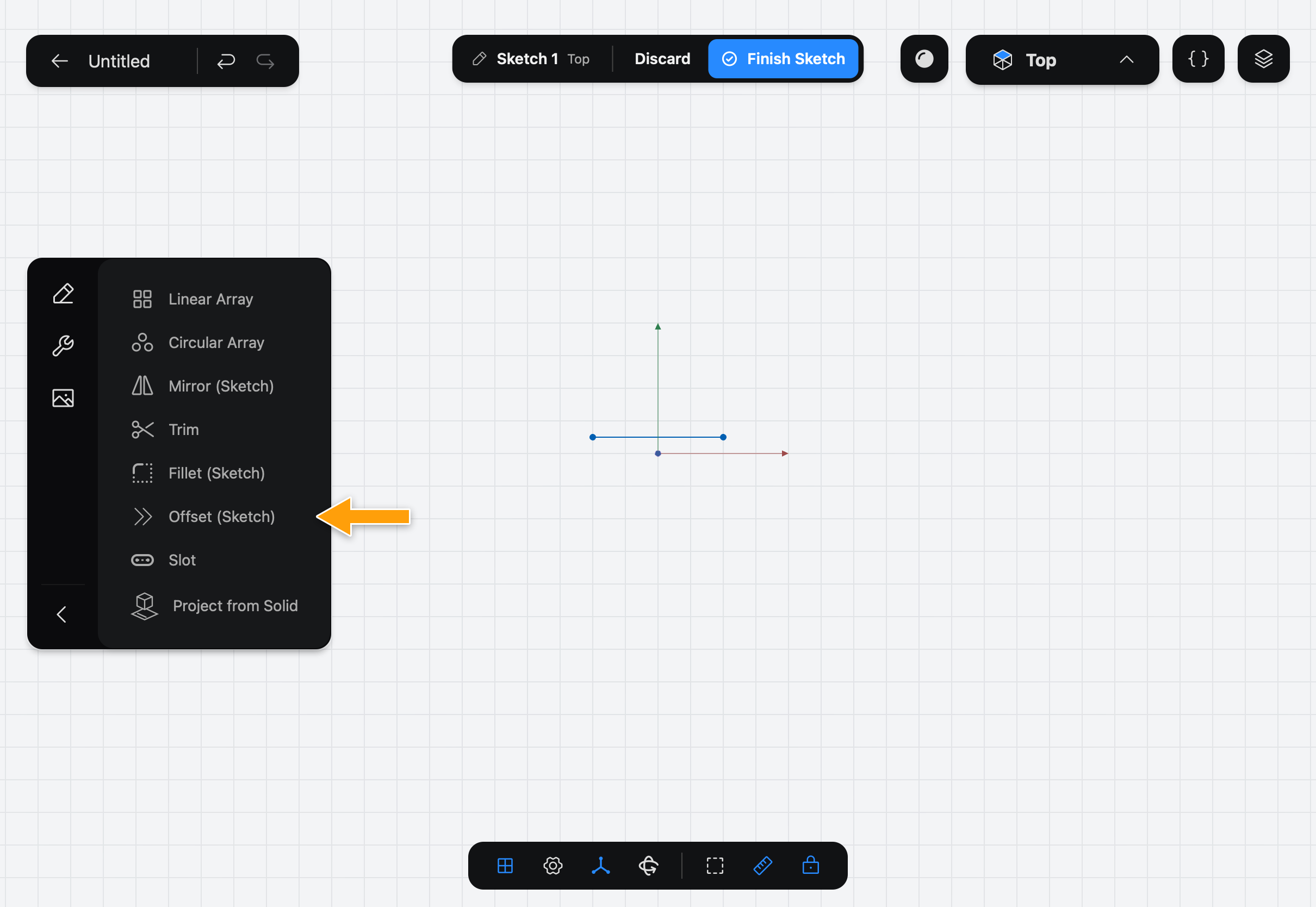
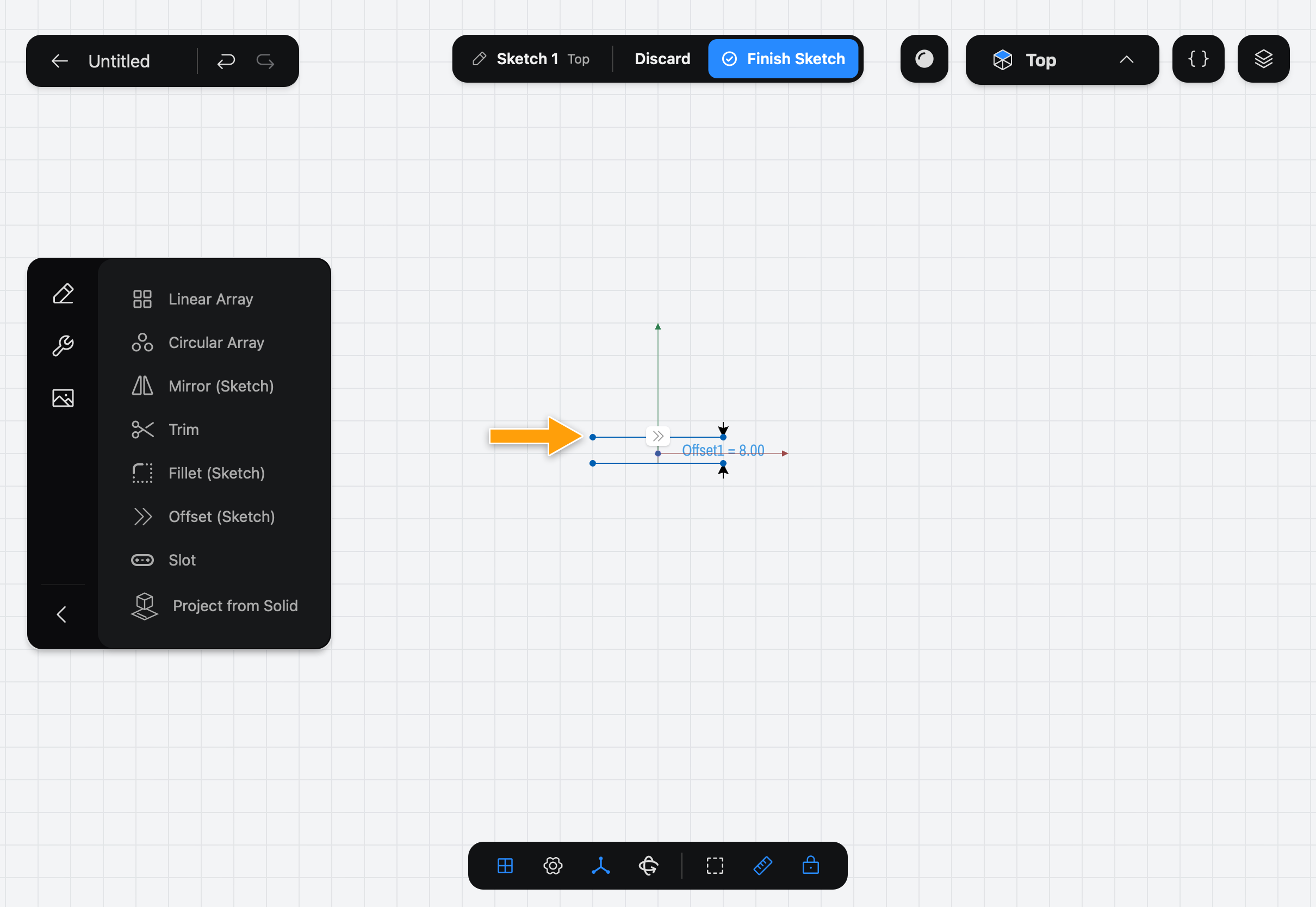
- The step bar shows Offset (Sketch), Tap lines and arcs to offset. Tap the lines and arcs of one connected chain. The offset appears as a dashed preview with a tag for its distance.
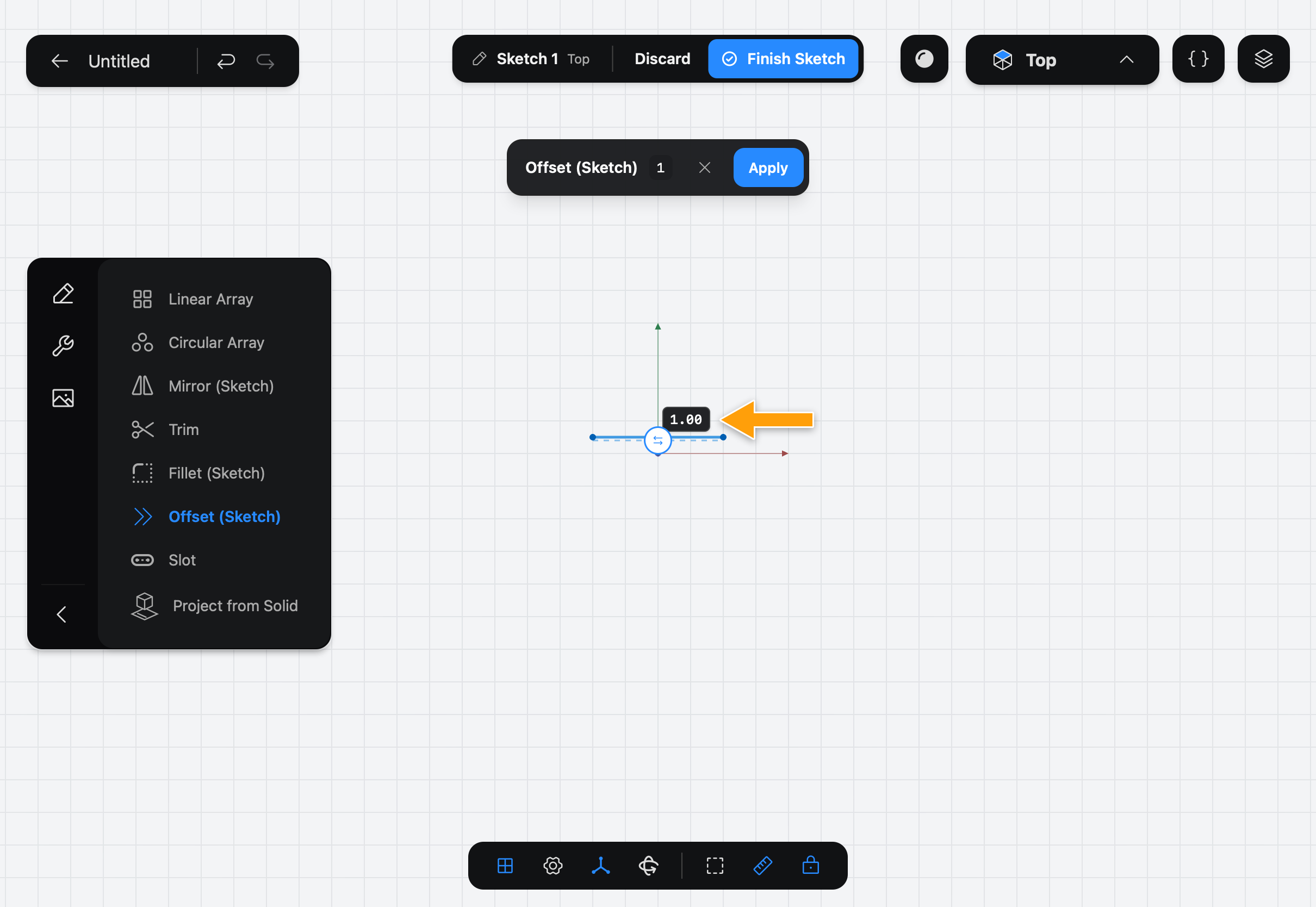
- Tap the tag and enter the distance.
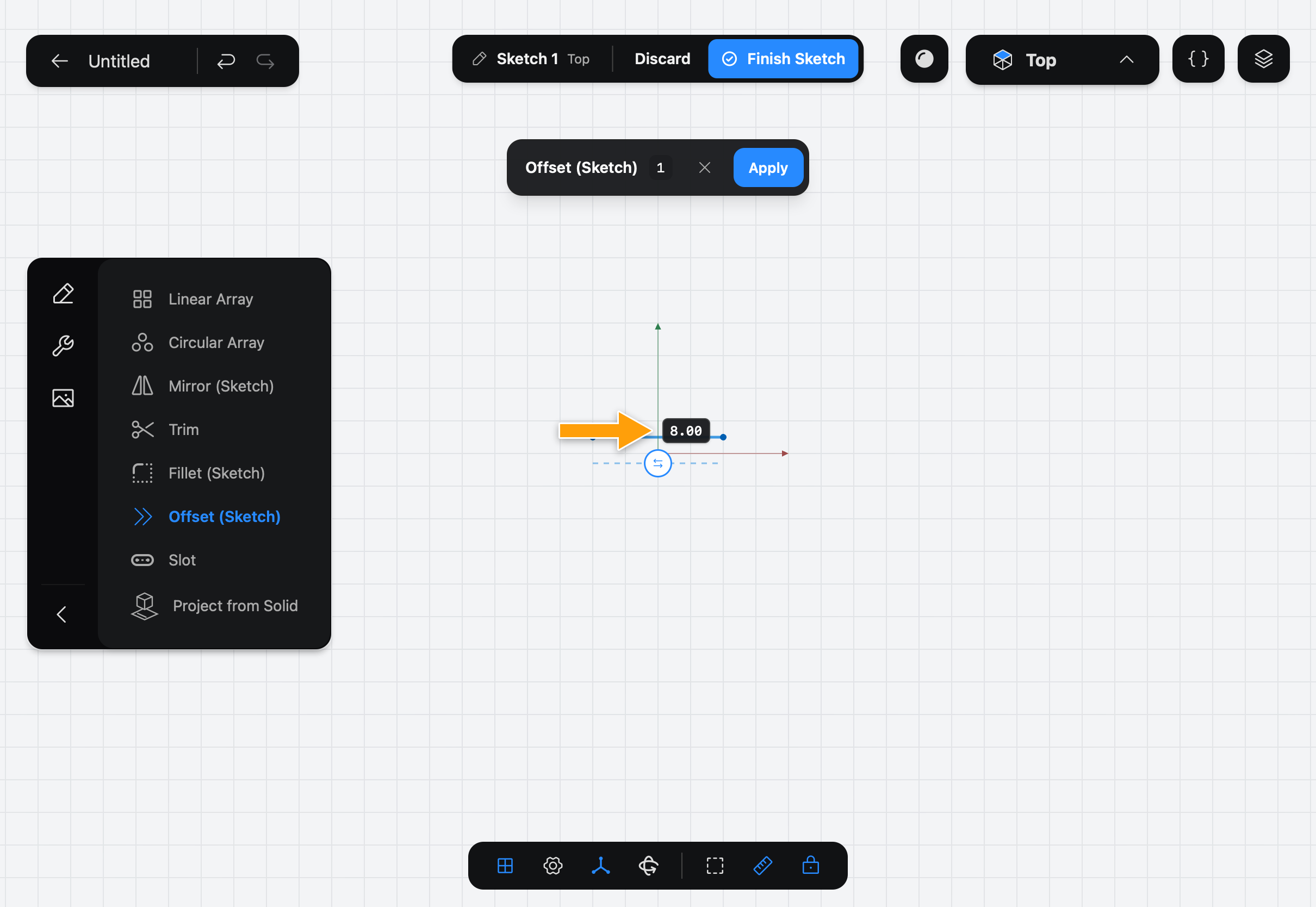
- To put the offset on the other side, drag the round flip handle across the original. Where you let go sets the side and the distance together.
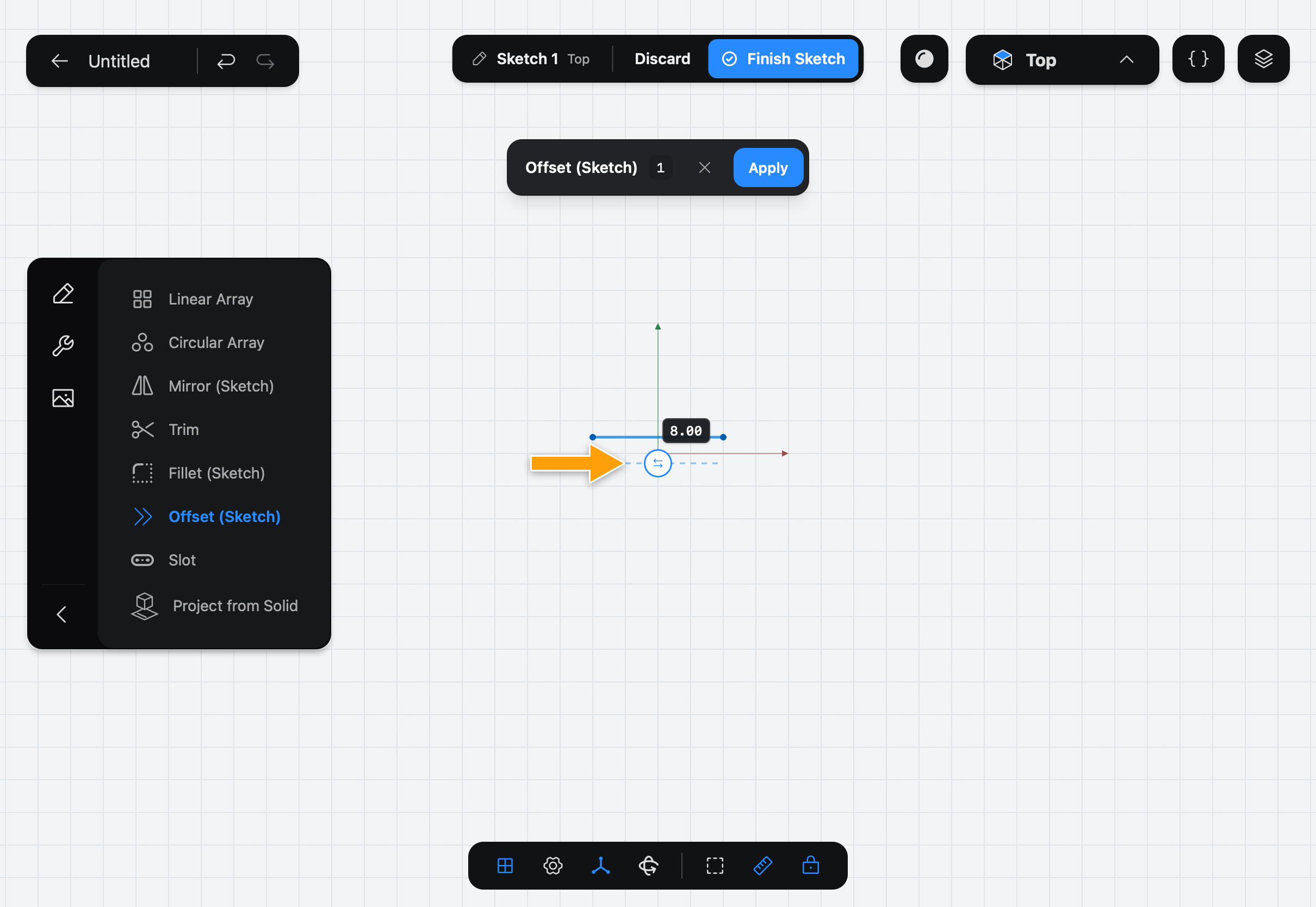
- Tap Apply.
Options
- Distance is how far the offset sits from the original. It starts at 1 mm and can't be zero.
- Flip side is the round handle on the offset. Drag it to the other side of the original to switch sides.
- The ✕ in the bar cancels the Tool.
The distance stays on the Sketch as a named value, such as Offset1 = 8.00: tap it later to change the distance. The offset is linked: if you change the original, or the distance, the offset follows. To take it out of the link, select it, tap ⋯ and pick Detach from Offset. If a later change means the offset can't tell what it follows, use Redefine Offset Source to pick the chain again.
Common problems
- A message says "Select only one connected chain": the shapes you picked aren't joined end to end. Pick one connected chain at a time.
- A message says "The offset distance can't be zero": enter a distance above zero.
- A message says the offset is too large for its source's arcs: the distance is more than an arc in the chain can take, for example more than its radius on the inside. Enter a smaller distance.
- Apply is greyed out: pick at least one line or arc first.
On Mac: click wherever this page says tap. To change the distance, click the tag and type the value; there is no numpad.
Was this helpful?
Still need help? Share an idea