Rectangle
Draw a rectangle from a corner or from its center point.
Written By Angelo Bartolome
Last updated About 2 months ago
Rectangle draws a four-sided outline in one stroke. It adds the lines and the Horizontal and Vertical Constraints that keep it square to the sketch.
When to use it
Use Rectangle for plates, boxes, slots and any shape with four right-angled corners. It is the first shape in Getting Started. For other shapes, see Line and Polygon.
Draw a rectangle
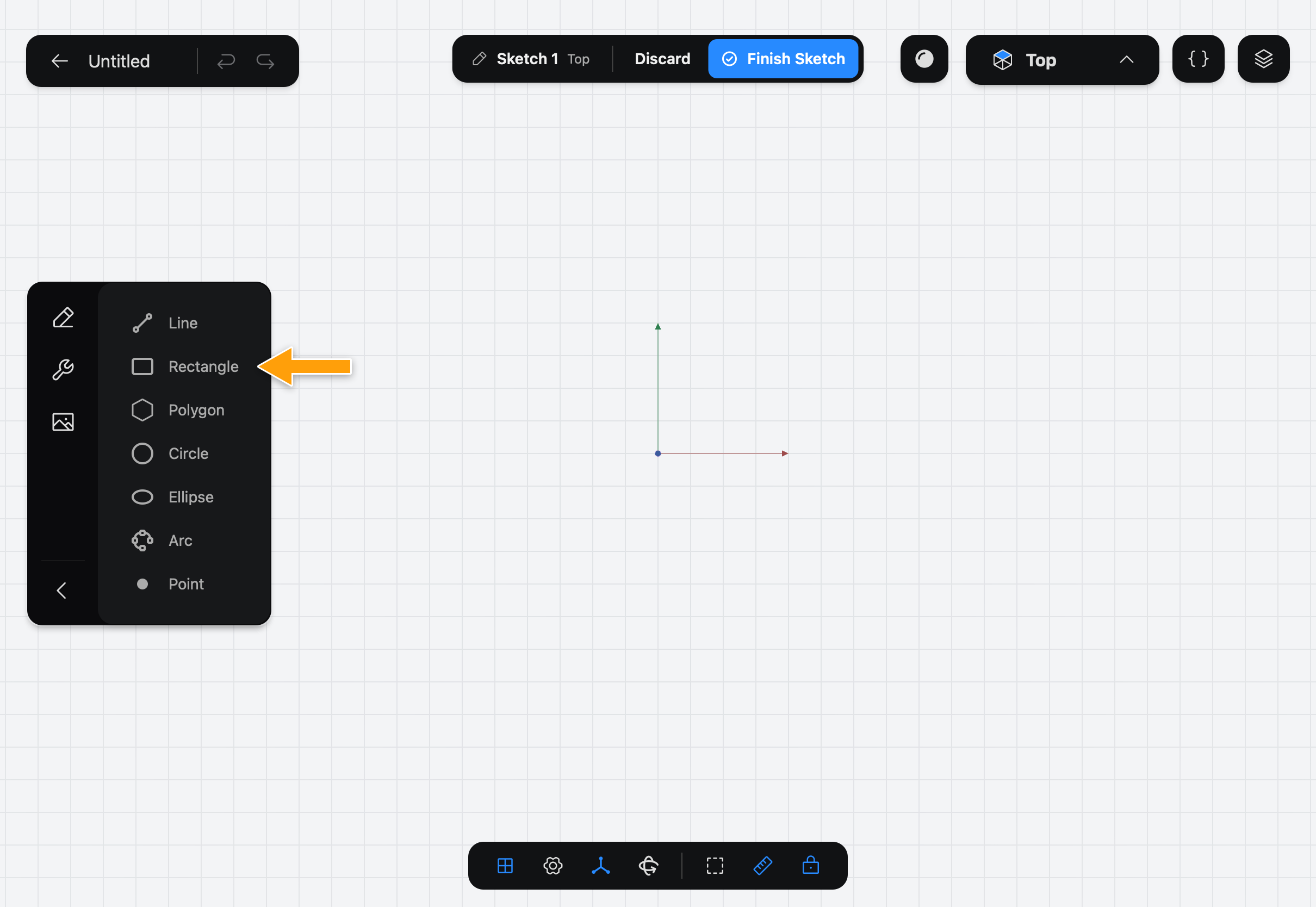
- While you edit a sketch, tap Rectangle in the sidebar. If you don't see the drawing Tools, tap the pencil icon at the top of the sidebar.
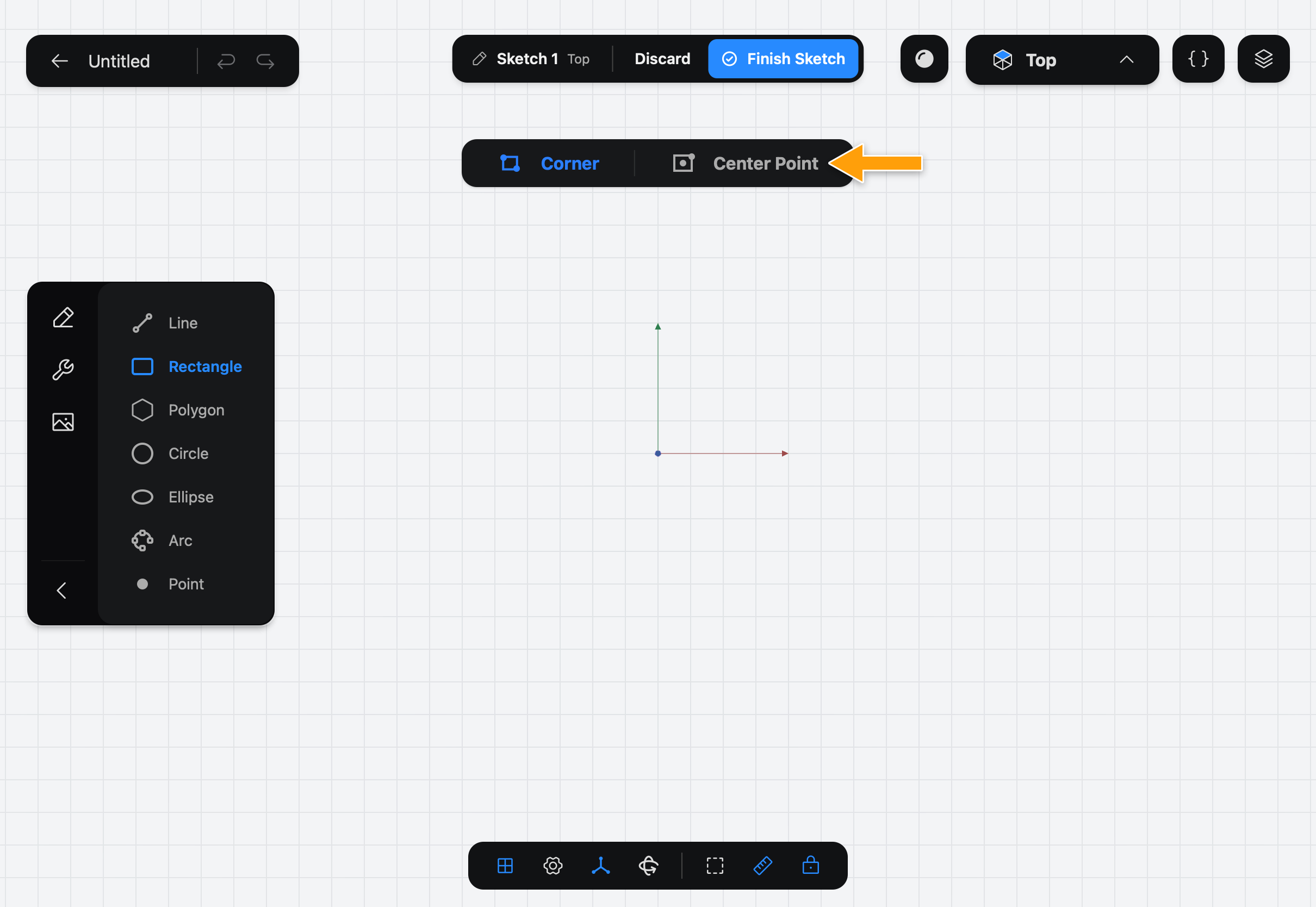
- The options bar shows Corner and Center Point. Corner is selected.
- With the Pencil, press at one corner, drag to the opposite corner, and lift.
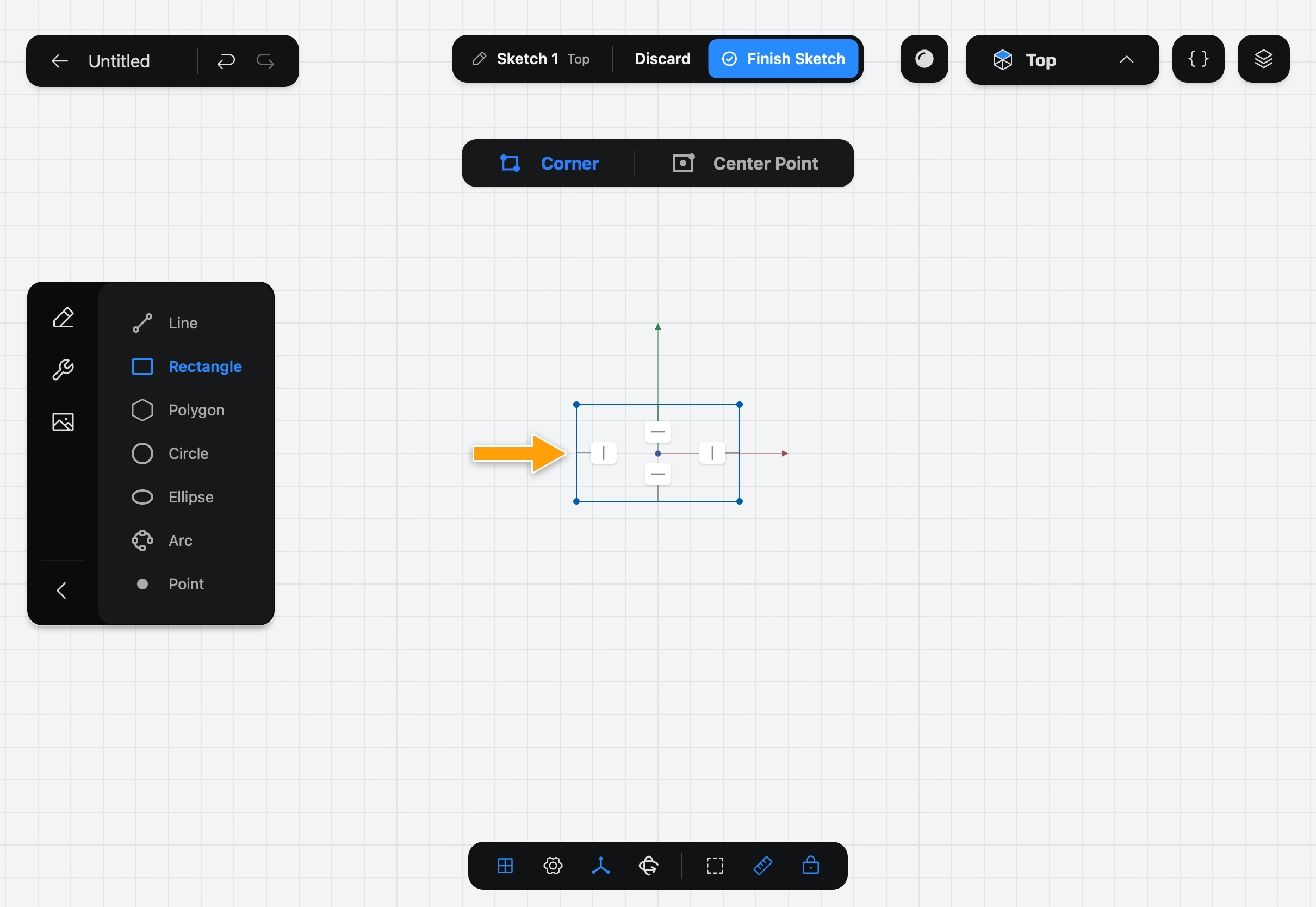
The sizes don't need to be exact. Set them afterwards by tapping an edge, tapping ⋯, and picking Distance.
Options
- Corner: the point where you press is one corner and the point where you lift is the opposite one.
- Center Point: the point where you press is the middle of the rectangle, and the point where you lift is a corner. The rectangle grows equally in every direction from the middle, which is handy for a shape centered on the origin.
The keyboard shortcut is R.
Common problems
- Nothing was drawn: you drew with a finger, which only turns the view. Draw with the Pencil.
- The rectangle isn't centered where I wanted: use Center Point and press on the origin or on an existing point.
- I can't turn the rectangle: it stays square to the sketch. To get a tilted box, draw it with Line.
On Mac: click and drag with the mouse instead of the Pencil, and press R to pick the Tool. Pressing the key again puts it away.
Was this helpful?
Still need help? Share an idea