Extrude
Add a Feature that turns a closed Sketch Face into a solid.
Written By Angelo Bartolome
Last updated About 2 months ago
Extrude pushes a closed Sketch Face straight out from its sketch to make a solid, and adds an Extrude Feature to the History. A rectangle becomes a plate, a circle becomes a cylinder.
When to use it
Use Extrude for most first solids: any shape with straight walls whose outline you can draw in one sketch. It's also how you add a boss or a rib onto an existing solid. To cut material away instead, use Extrude Cut.
Create an Extrude
- In the sidebar, tap Extrude. If you don't see it, tap the pencil icon at the top of the sidebar to show the Features tab.
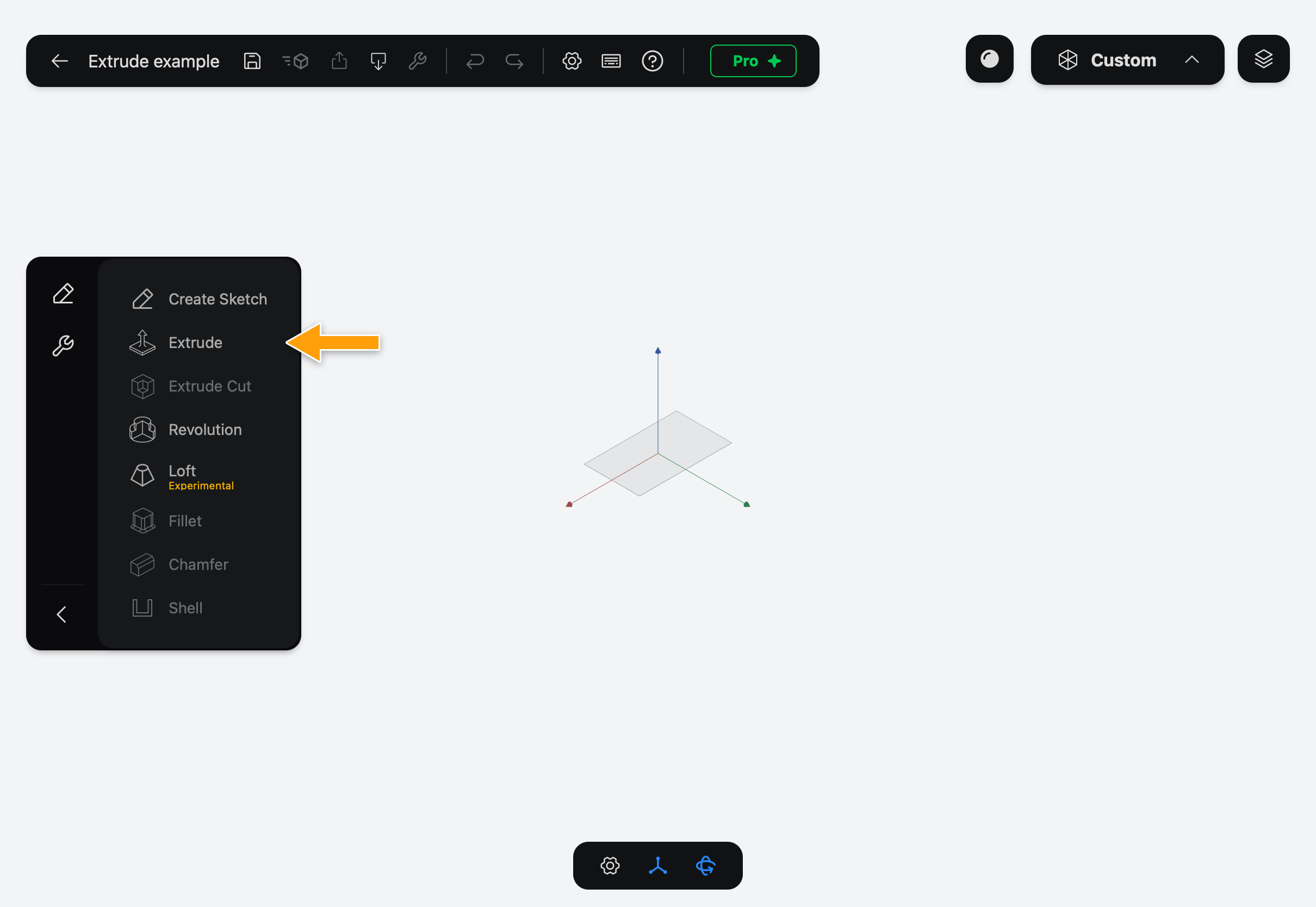
- The Extrude panel opens and asks you to Select Sketch Face. Tap inside a closed profile of your sketch. The field changes to 1 Sketch Face and a preview appears. You can tap more faces from the same sketch to extrude them together.
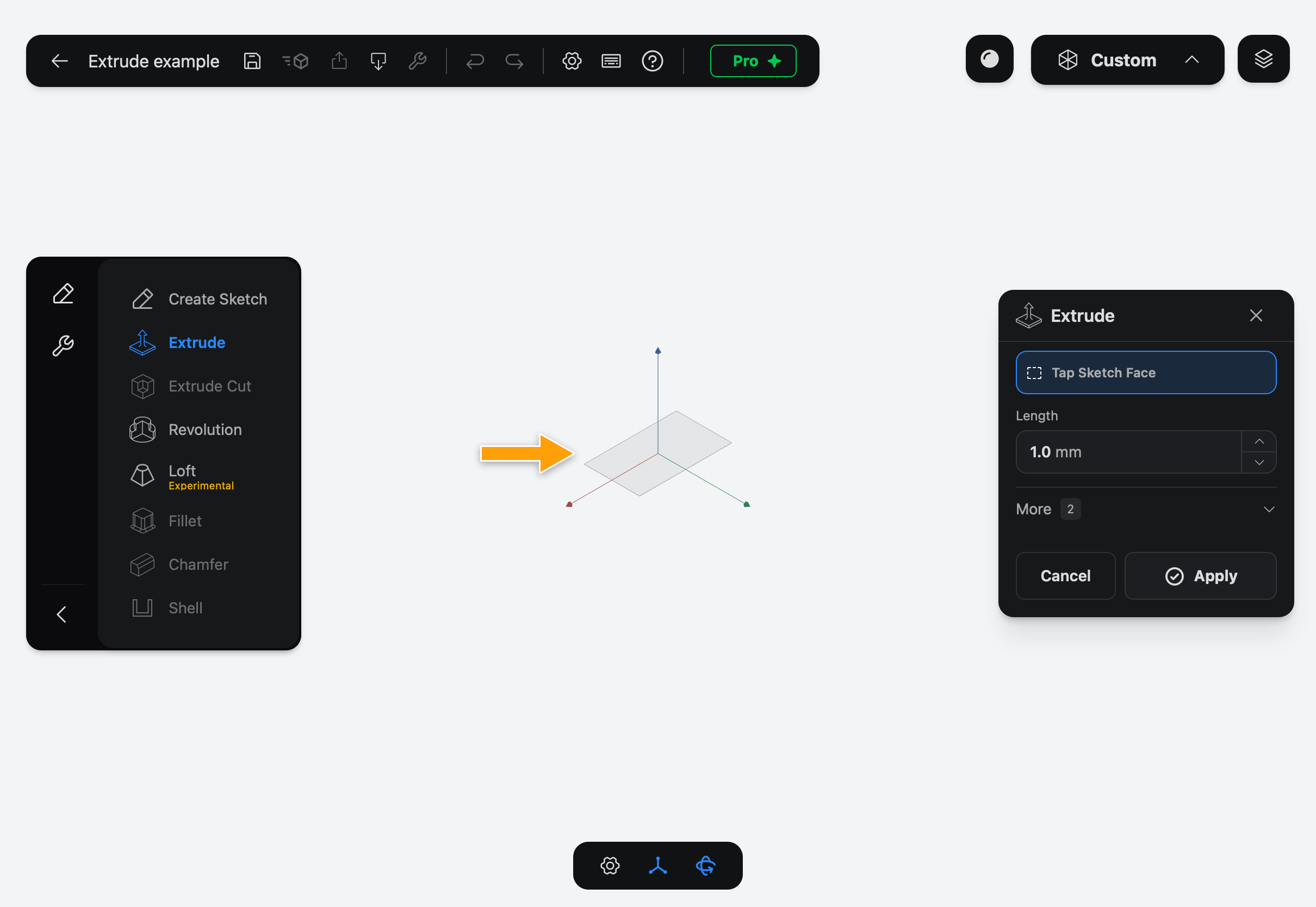
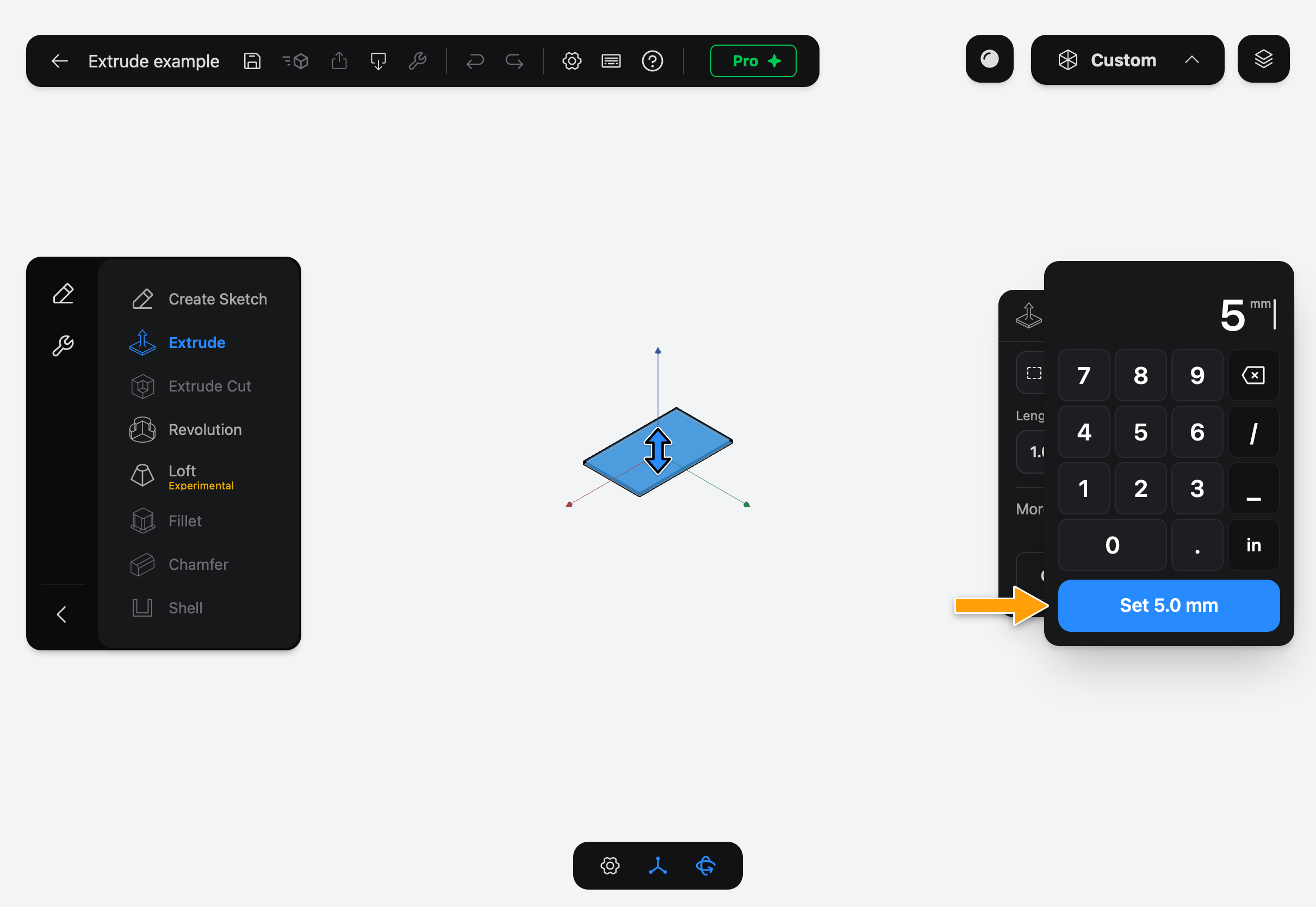
- Tap the Length value to open the numpad, enter
5, and tap Set 5.0 mm. The preview grows to the new length.
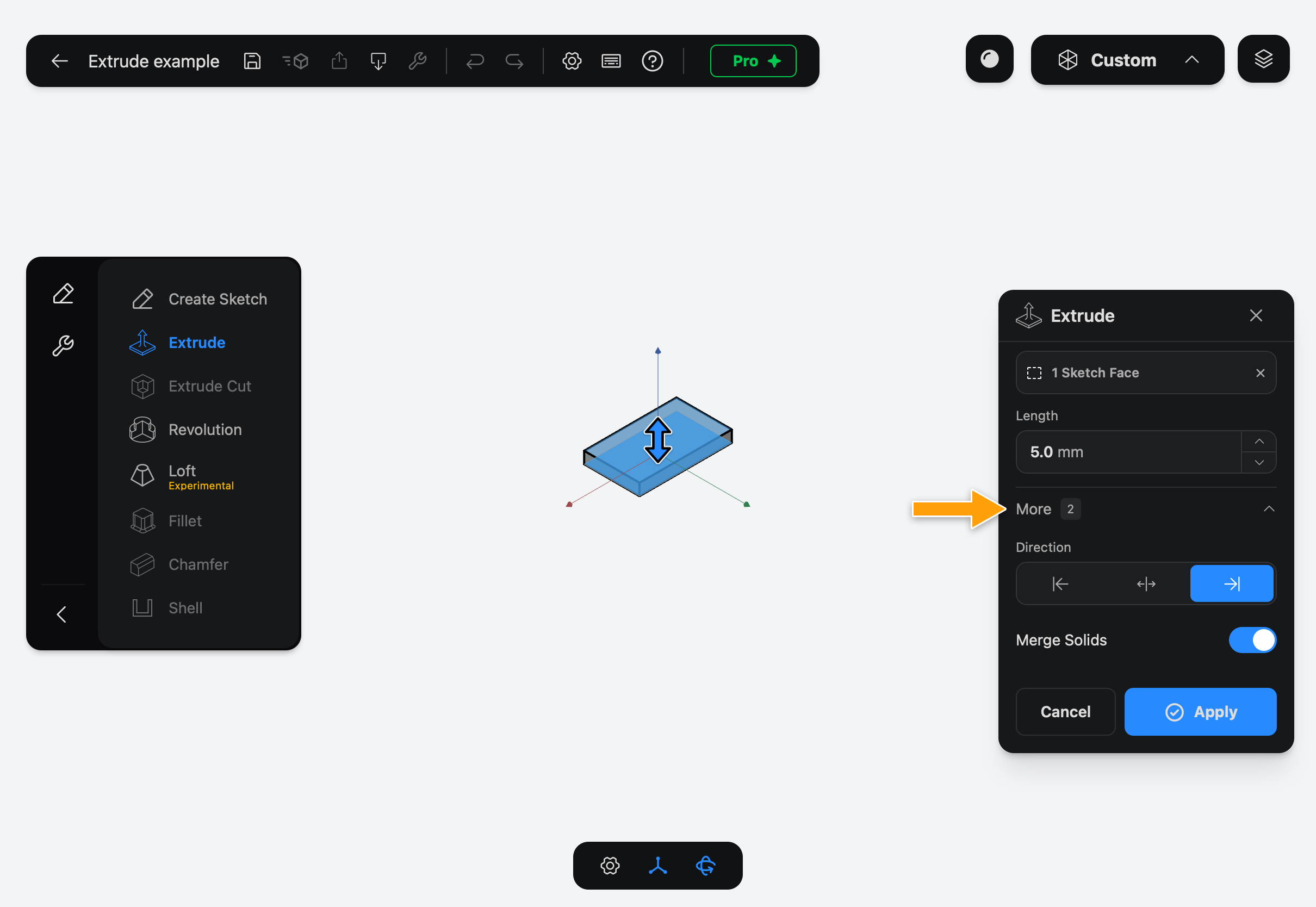
- Tap More to show Direction and Merge Solids. The defaults suit most cases.
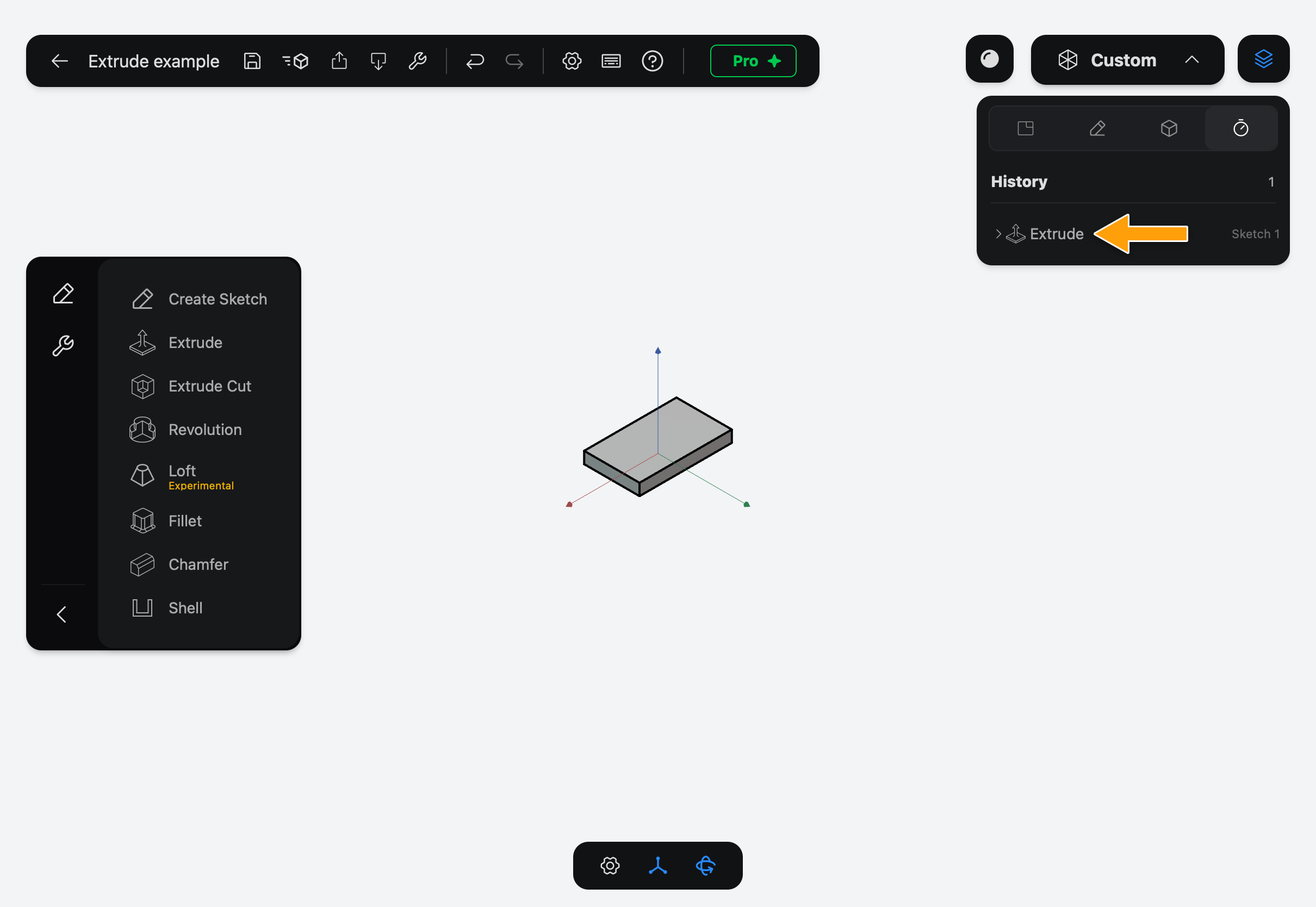
- Tap Apply. The solid is created and the Extrude Feature is added to the History. To see it, tap the layers icon in the top-right corner, then the History tab (the timer icon).
Options
- Length is how far the profile is pushed out, in the Document's units. It must be more than zero, and starts at 1 mm. Besides the numpad, you can nudge it with the arrows next to the value, or drag the blue arrow in the preview.
- Direction picks which side of the sketch the solid grows on:
- the right arrow (the default) grows it toward the side the sketch faces,
- the left arrow grows it toward the opposite side,
- the middle button grows it both ways, half of the Length on each side.
- Merge Solids is on by default: if the new solid overlaps or touches an existing solid, the two are joined into one. Turn it off to always get a separate solid.
- The Sketch Face field shows how many faces are picked. Tap its × to clear them and pick again.
Tip: With a keyboard, press E to open Extrude when no sketch is being edited.
Common problems
- Tapping the sketch picks nothing: the profile isn't closed. Edit the sketch and close every gap so its outline forms a loop, then open Extrude again.
- Apply stays greyed out: pick at least one Sketch Face and make sure Length is more than zero.
- The solid grew the wrong way: change Direction under More, or drag the blue arrow the other way.
- The new solid was joined to one you wanted to keep separate: turn off Merge Solids under More and apply again.
On Mac: click wherever this page says tap. To set Length, click the value and type the number; there is no numpad.
Was this helpful?
Still need help? Share an idea