Import Image
Place a picture behind a Sketch to trace over.
Written By Angelo Bartolome
Last updated About 2 months ago
Pro: Import Image is part of Part3D Pro.
Import Image puts a photo, a scan or a drawing behind your Sketch, so you can trace its outline with the drawing Tools. The image is a guide only: it is saved with the Sketch, but it is not part of its outline, and it is never turned into a solid.
When to use it
Use Import Image to copy a part from a photo or a hand drawing: lay the picture down, scale it to the right size, then draw over it with Line, Rectangle and the other Tools. For an SVG file, use Import SVG, which keeps its lines sharp, or Import SVG as geometry to turn it into lines and circles.
Import an image
- While you edit a sketch, tap the picture icon at the bottom of the sidebar's icon column (Reference Images) to show the import Tools, then tap Import Image.
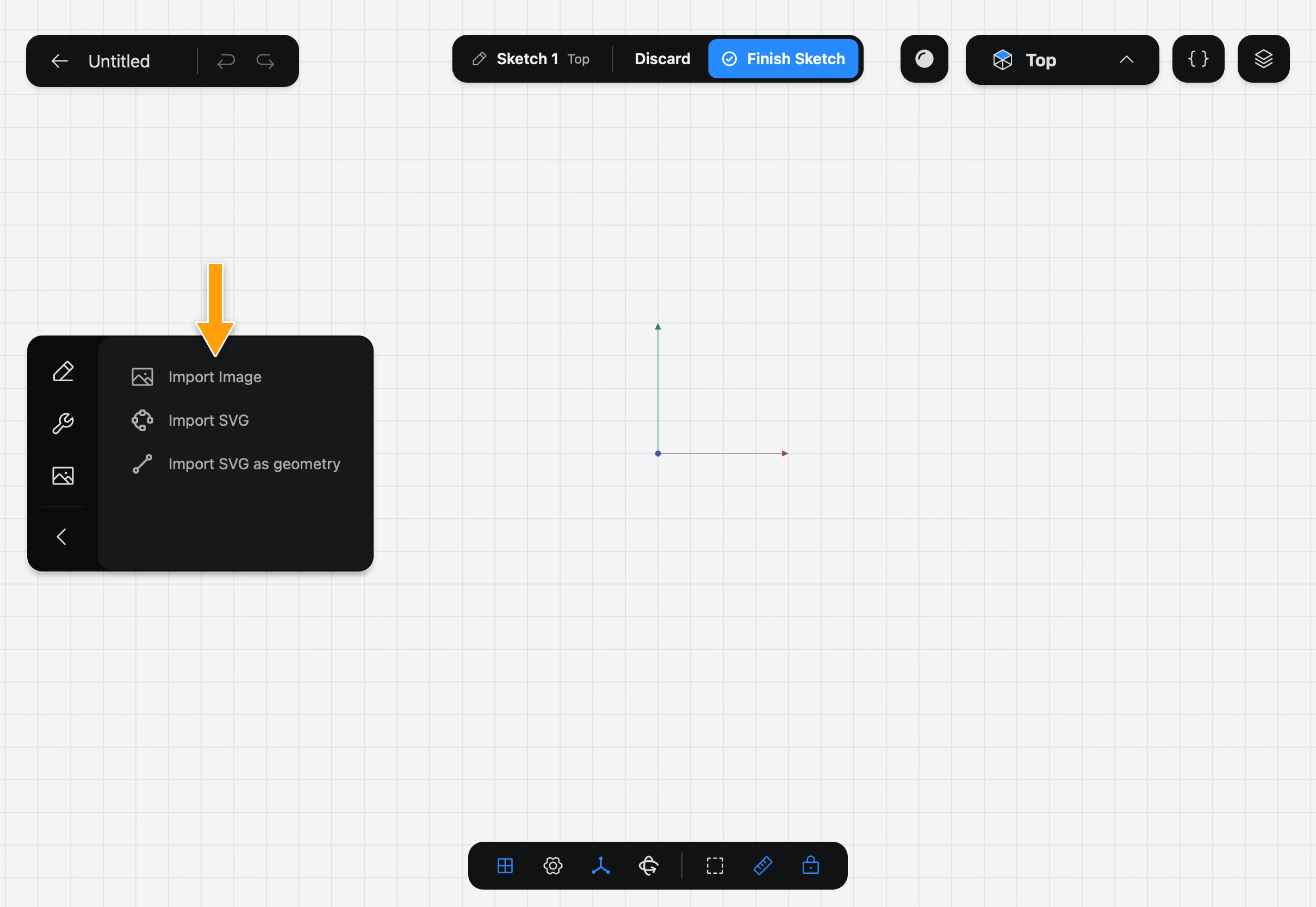
- The system file picker opens. Choose a PNG, JPG or WebP file. If you change your mind, cancel the picker and nothing is added.
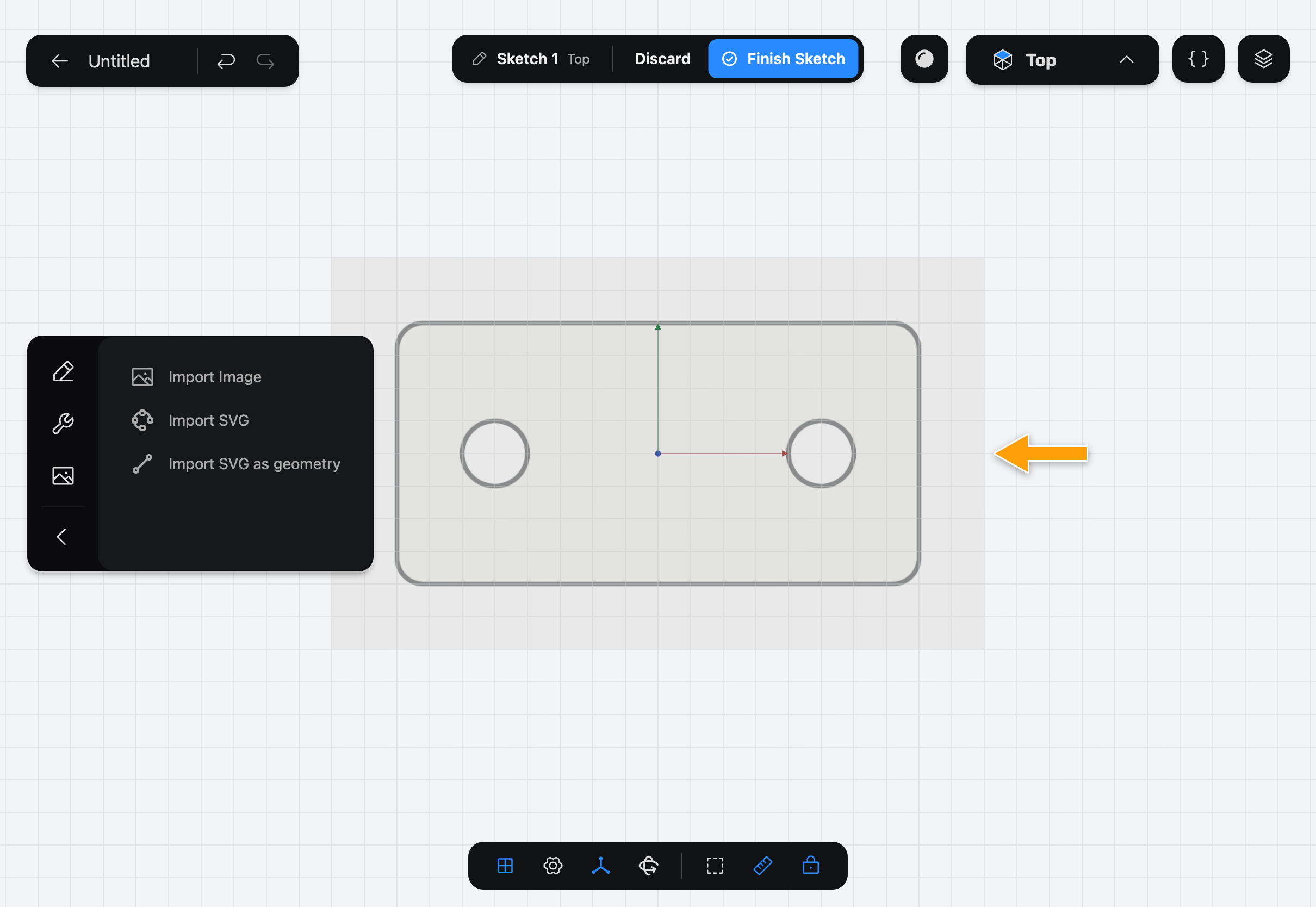
- The image appears on the Sketch, centered on the origin and half see-through. Its longer side is 200 mm.
- To adjust it, tap the image to select it, then tap the ⋯ button. The Reference Image menu opens with Move, Scale, Opacity and Delete.
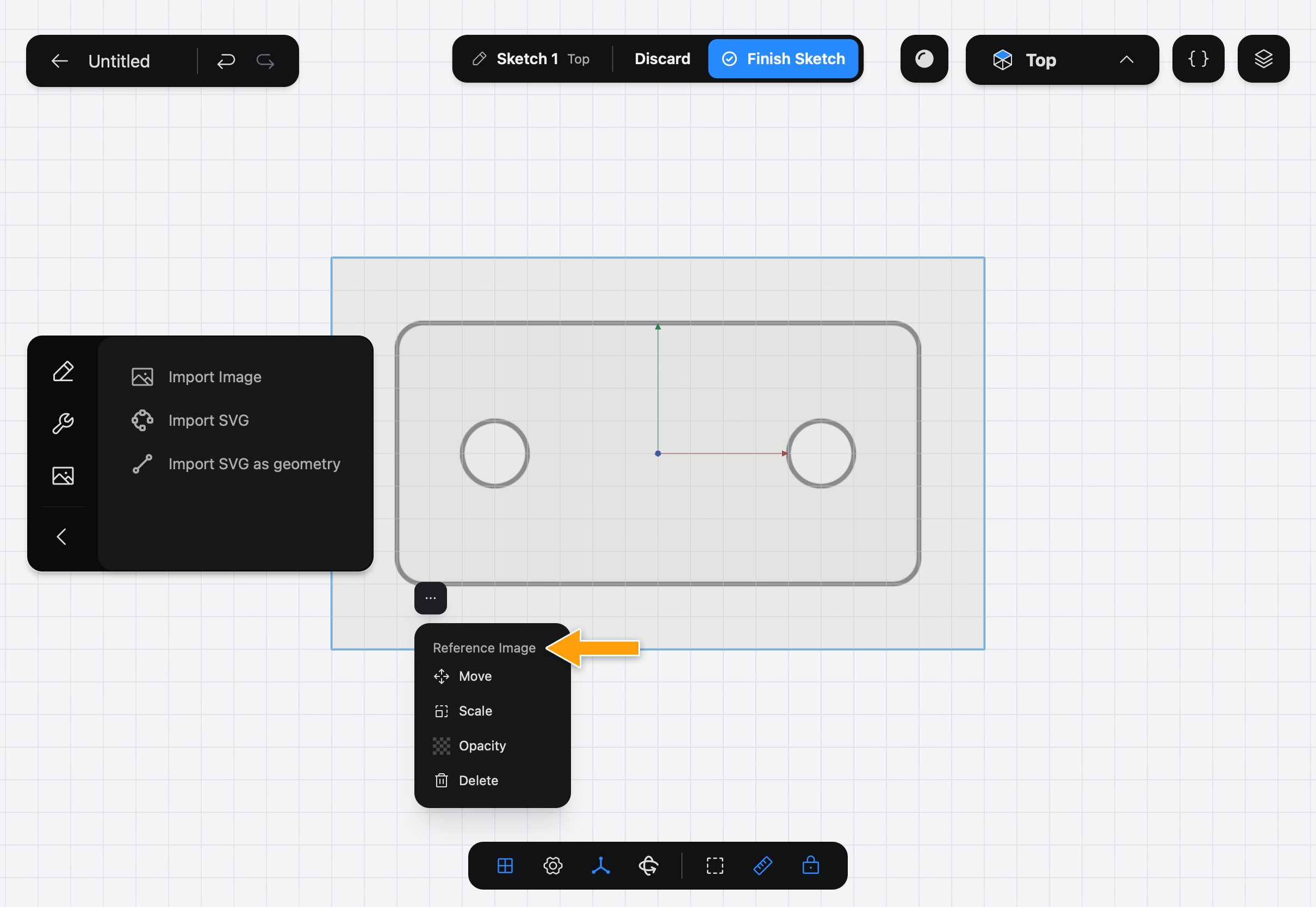
Move, scale and fade the image
- Move: tap it, then drag the image.
- Scale: tap it, then drag the image away from its center to make it bigger, or toward its center to make it smaller. Drag until a feature of the picture matches a size you know, such as a hole's diameter.
- Opacity: tap it, then use the slider to fade the image more or less.
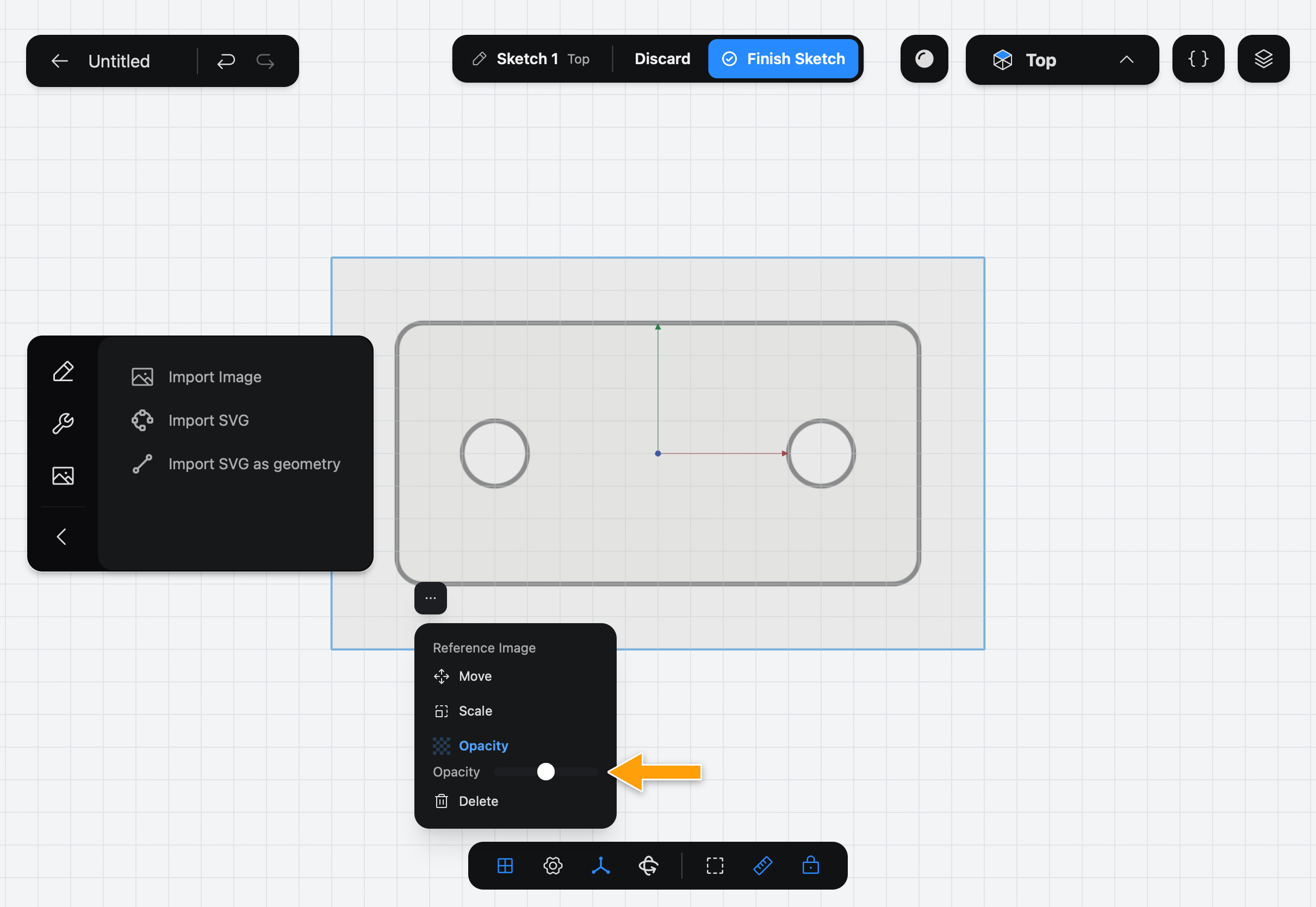
Tap a mode again to switch it off, so a drag on the image no longer moves it. Delete removes the image from the Sketch. Undo takes back a move or a scale.
Options
- Move, Scale and Opacity are described above. A new image starts at half opacity.
- Delete removes the image.
Common problems
- Nothing was added: the file picker was cancelled, or the file isn't a PNG, JPG or WebP image.
- The image is the wrong size: use Scale. Check the size against a dimension on the Sketch.
- I can't select the image: tap a part of the image away from any lines you have drawn, then tap ⋯.
- The image gets in the way: lower its Opacity, or delete it once you have traced it.
On Mac: click wherever this page says tap. The file picker is the standard Open panel.
Was this helpful?
Still need help? Share an idea