Import SVG
Place a vector drawing behind a Sketch to trace over, kept sharp at any zoom.
Written By Angelo Bartolome
Last updated About 2 months ago
Pro: Import SVG is part of Part3D Pro.
Import SVG puts a vector drawing (an SVG file) behind your Sketch as a guide to trace. Unlike Import Image, the drawing stays sharp however far you zoom in. Like it, the drawing is only a guide: it is not part of the Sketch's outline.
When to use it
Use Import SVG when your reference is a vector file, such as a logo or a technical drawing, and you want to trace it by hand. To turn the SVG's lines and circles into real Sketch geometry instead, use Import SVG as geometry.
Import an SVG
- While you edit a sketch, tap the picture icon at the bottom of the sidebar's icon column (Reference Images) to show the import Tools, then tap Import SVG.
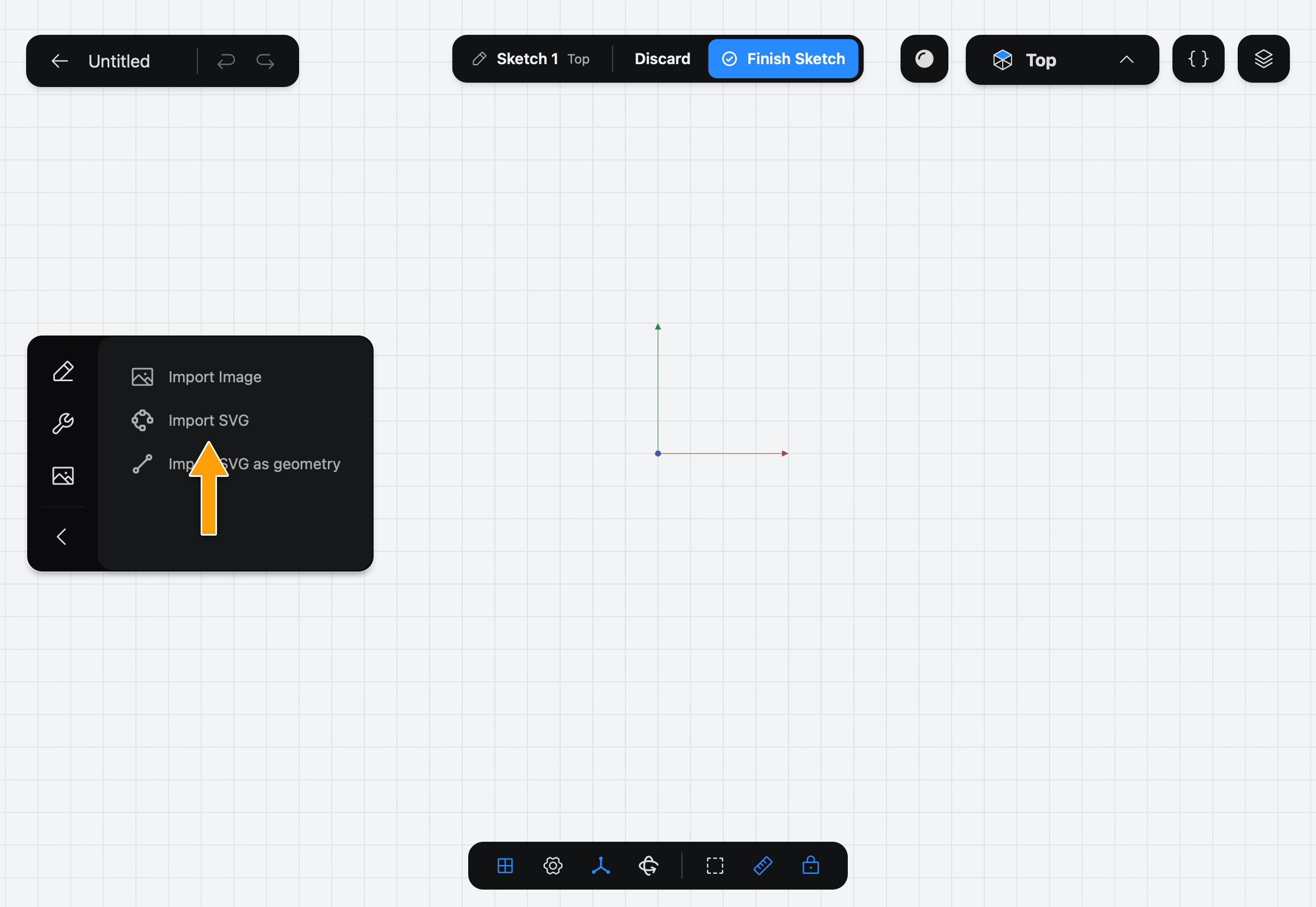
- The system file picker opens. Choose an SVG file. If you cancel, nothing is added.
- The drawing appears on the Sketch, centered on the origin and half see-through. Its longer side is 200 mm.
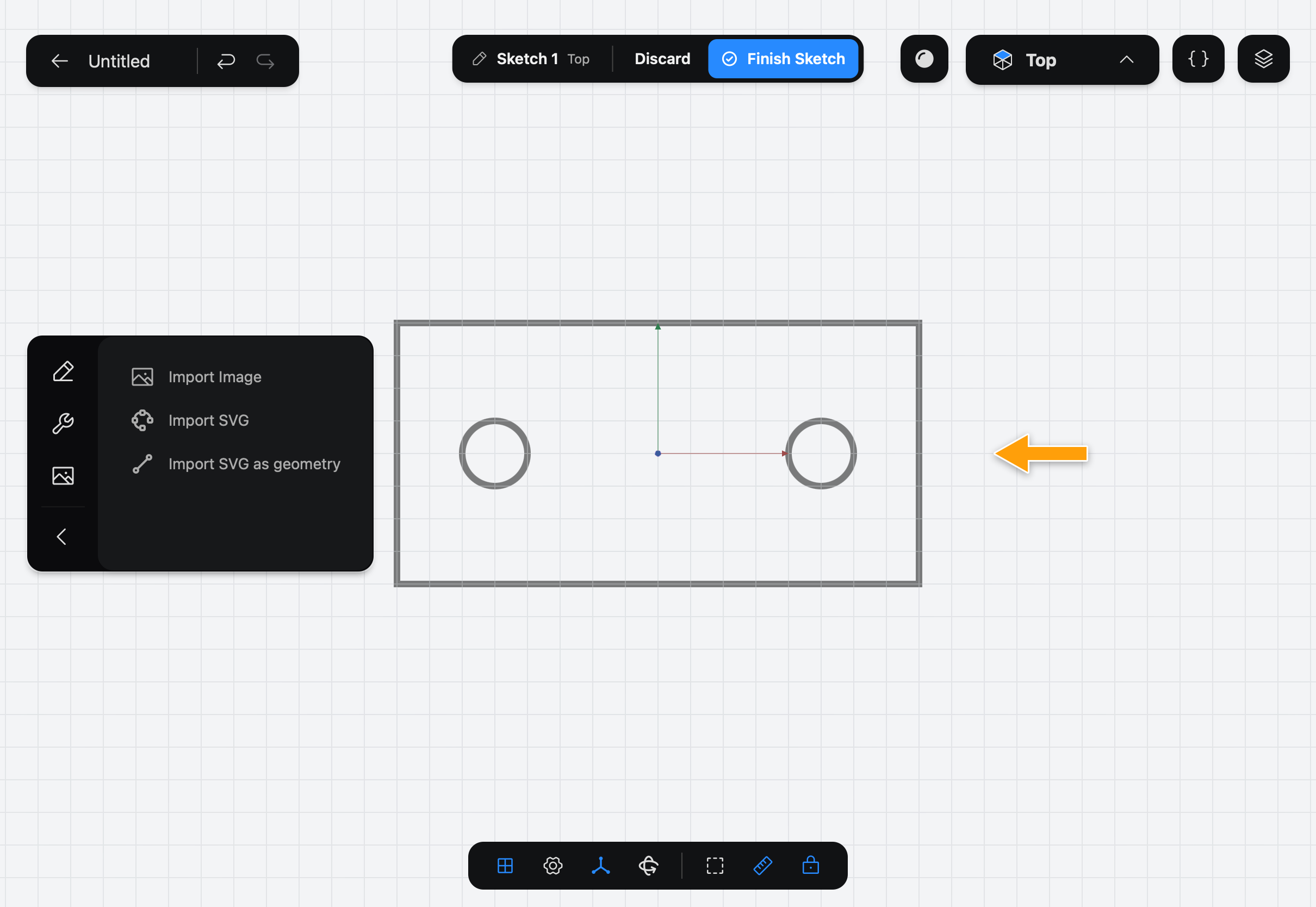
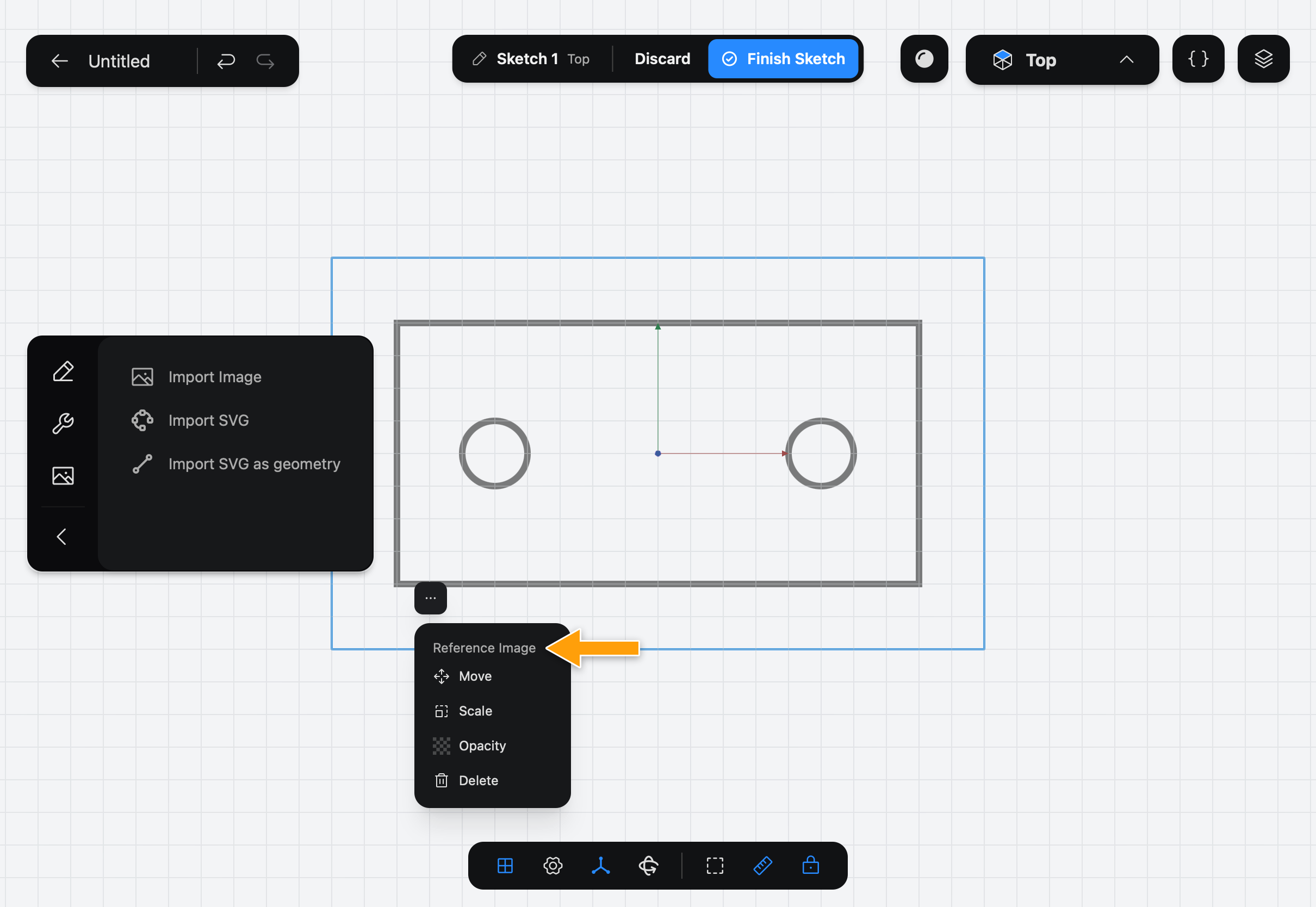
- To adjust it, tap the drawing to select it, then tap the ⋯ button. The Reference Image menu opens with Move, Scale, Opacity and Delete, which work as they do for an image.
Options
- Move: tap it, then drag the drawing.
- Scale: tap it, then drag the drawing away from its center to make it bigger, or toward its center to make it smaller.
- Opacity: tap it, then use the slider.
- Delete removes the drawing.
Common problems
- Nothing was added: the file picker was cancelled, or the file isn't a valid SVG.
- The drawing is the wrong size: use Scale, and compare a feature with a dimension on the Sketch.
- I want to edit the lines: an imported SVG is a guide and can't be edited. Use Import SVG as geometry to get lines and circles you can change.
On Mac: click wherever this page says tap. The file picker is the standard Open panel.
Was this helpful?
Still need help? Share an idea