Polygon
Draw a regular polygon with any number of equal sides.
Written By Angelo Bartolome
Last updated About 2 months ago
Polygon draws a regular polygon: every side the same length and every corner the same angle. It is built around a circle that Part3D draws as construction geometry, with each side touching the circle.
When to use it
Use Polygon for hexagonal nuts and bolt heads, star-shaped bosses and any outline with equal sides. For unequal sides, use Line.
Draw a polygon
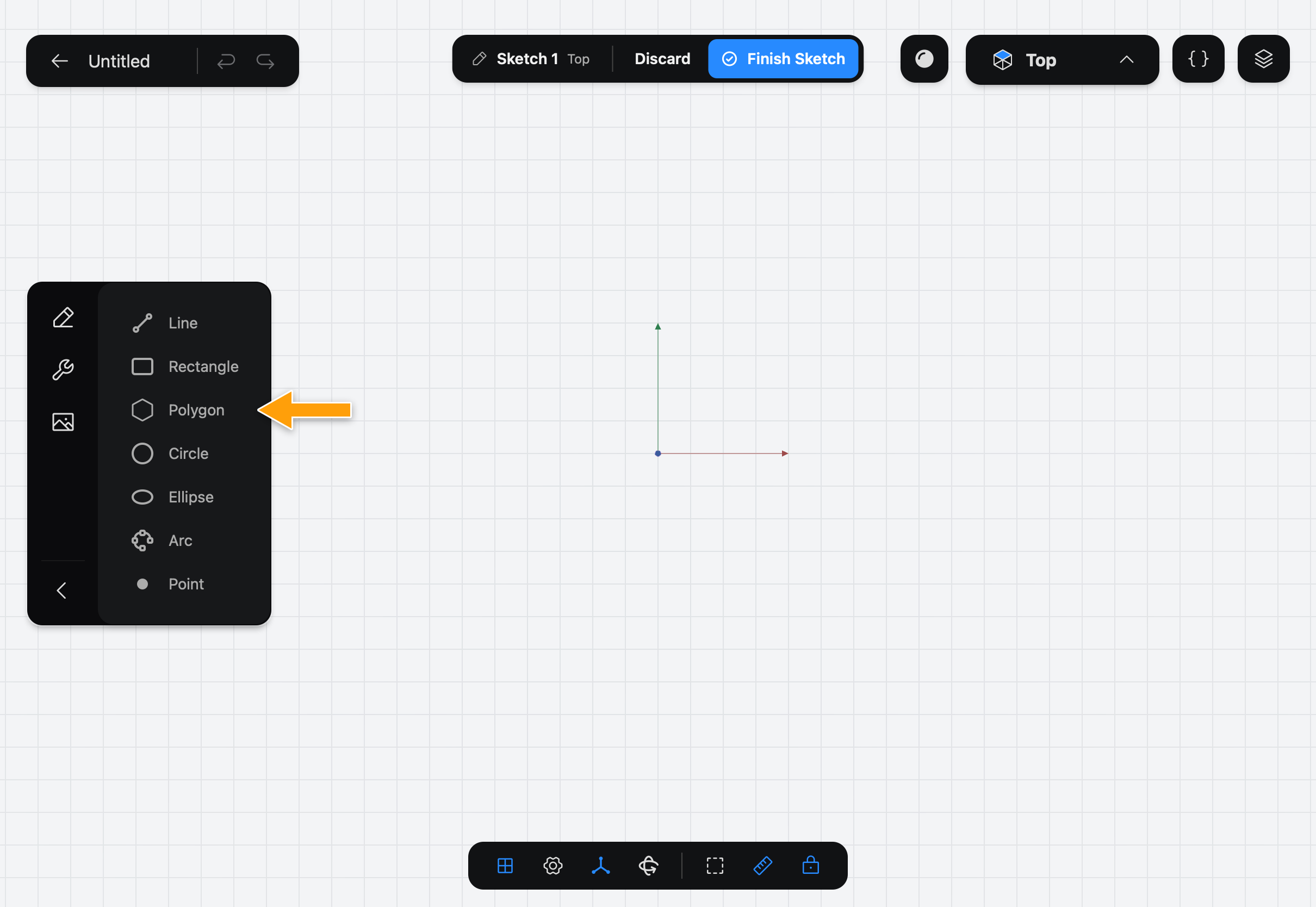
- While you edit a sketch, tap Polygon in the sidebar. If you don't see the drawing Tools, tap the pencil icon at the top of the sidebar.
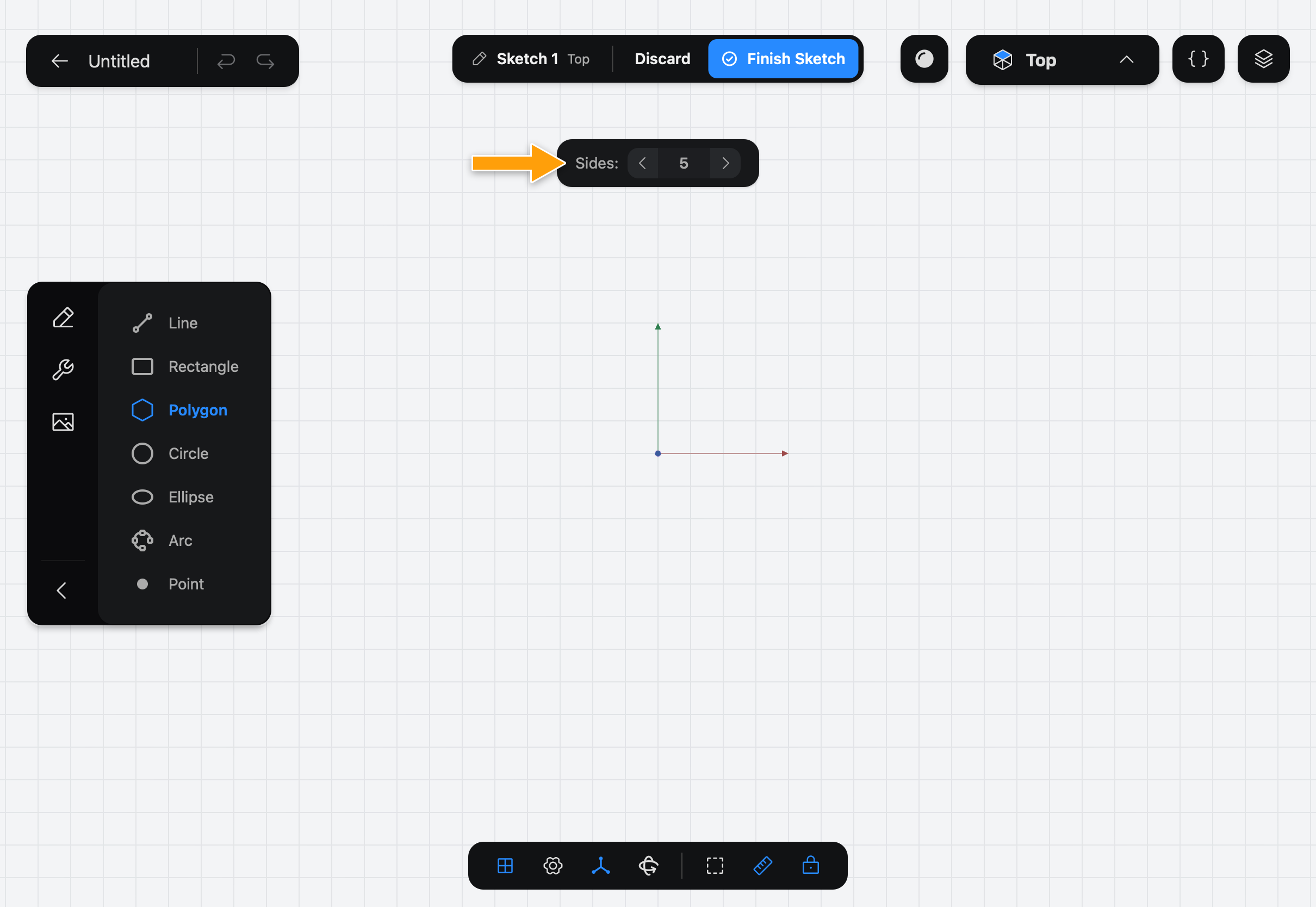
- The options bar shows Sides, set to 5. Tap the arrows on either side of the number to change it.
- With the Pencil, press where the center should be, drag outward, and lift.
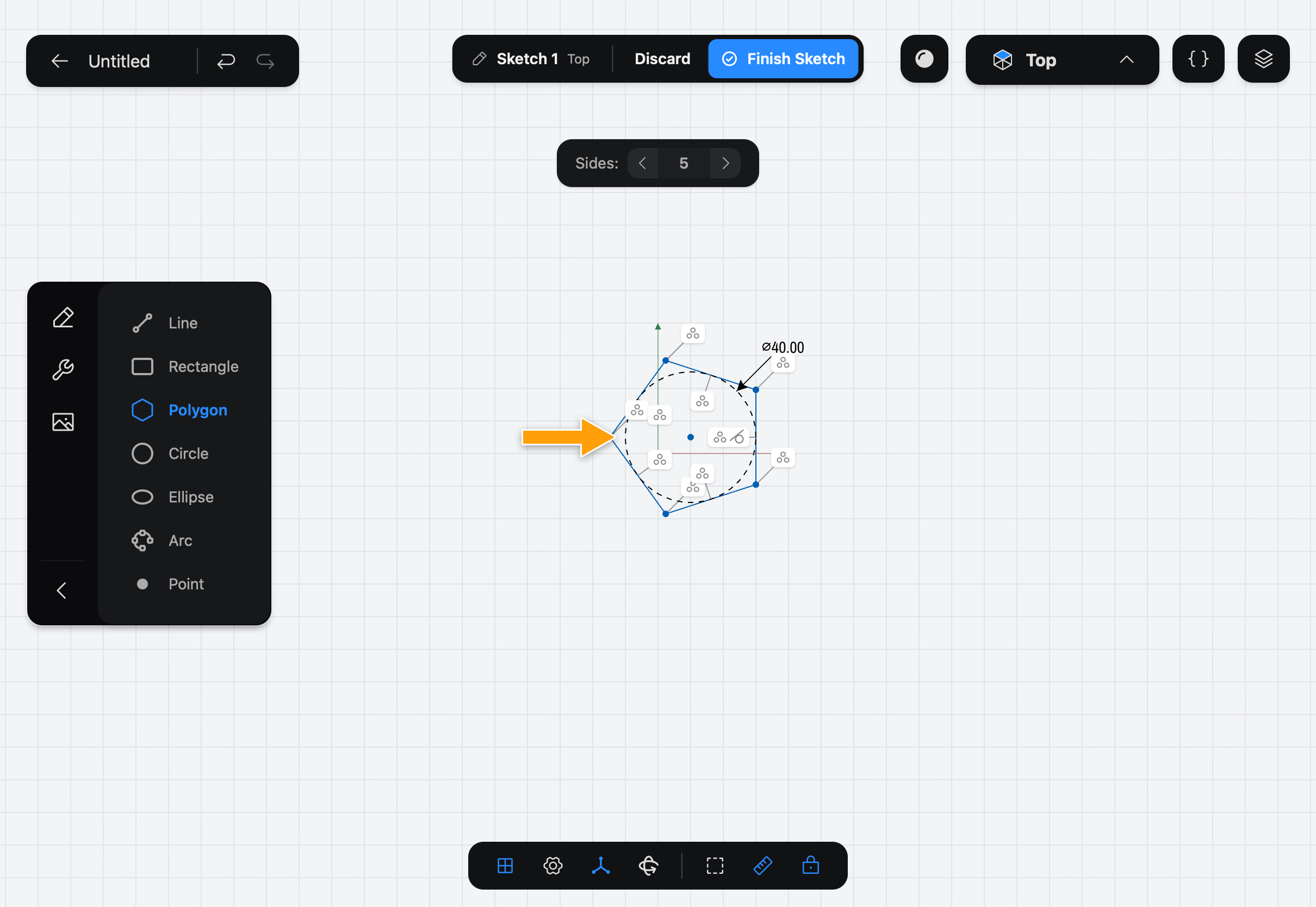
The distance you drag is the distance from the center to the middle of a side, and the direction sets where that side sits. A dashed construction circle shows this, with its diameter as a dimension. Change the dimension later to resize the whole polygon.
Options
- Sides is how many sides the polygon has. It must be 3 or more, and starts at 5.
The keyboard shortcut is G.
Common problems
- The polygon is the wrong size: its size is the circle that touches the sides, not its corners. Tap the dashed circle's dimension and set the value you want.
- Sides won't go below 3: a polygon needs at least three sides.
- Nothing was drawn: draw with the Pencil, not a finger.
On Mac: click and drag with the mouse instead of the Pencil, and press G to pick the Tool. Pressing the key again puts it away.
Was this helpful?
Still need help? Share an idea